
Threat Feed
The Threat Feed is a single, chronological stream of curated threat intelligence harvested from dark-web sources: ransomware leak sites, breach forums, and initial-access broker listings. Each item is parsed into a structured record — category, threat actor, victim country, industry, and named organization — so you can triage hundreds of new posts a day and surface the ones that touch your attack surface.
Overview
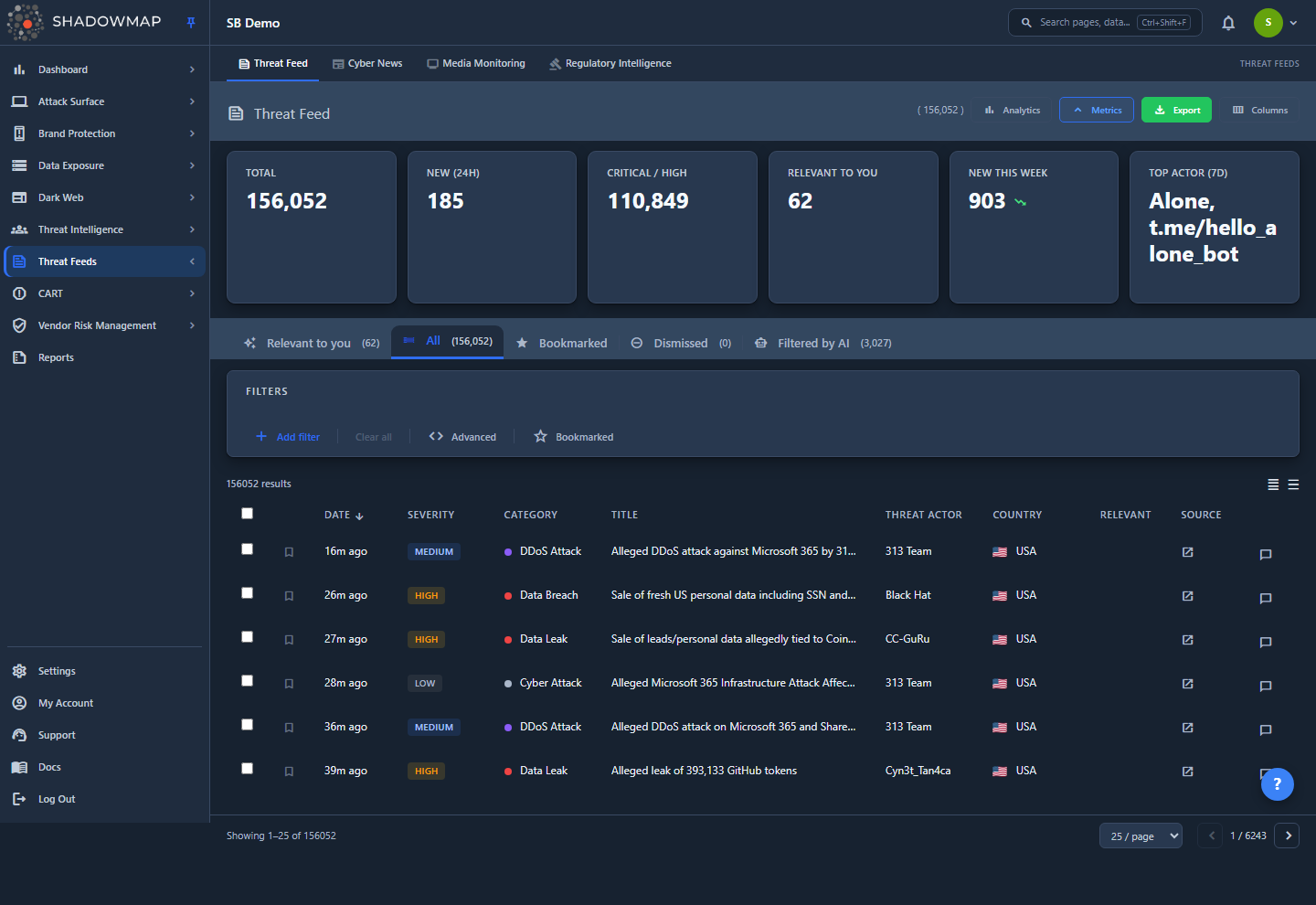
The page is a tabbed table. The default landing tab (All) shows the full feed (newest first); the metrics strip across the top gives at-a-glance volume and recency numbers; an optional analytics panel breaks the feed down by category, actor, and victim geography. Every row is a single threat event you can bookmark, comment on, mark reviewed, archive, or open in a detail drawer.
This is intelligence about the threat landscape, not findings about your own assets. A ransomware post here means "this actor breached this victim and is leaking their data" — it becomes relevant to you when it touches your own attack surface: a product or CVE in your tech stack, your sector, or one of your vendors. ShadowMap flags those matches automatically (see Relevance).
How it works
The mechanics below are not visible from the UI but determine what you see and how the page behaves.
Where the data comes from
Items are ingested from ShadowMap's dark-web collection pipeline (the DWI feed) into two backend tables that the page unions into one stream:
| Source | Backend table | What it contains |
|---|---|---|
| Ransomware leak sites | dwi_ransomware | Victim posts from ransomware-group leak/extortion sites. The actor is the group_name; category is always Ransomware. |
| General threat intel | dwi_threatfeed | Everything else — data breaches, data leaks, initial-access sales, defacements, DDoS claims. Carries explicit category, victim_country, victim_industry, and named organization fields. |
Both tables are company-agnostic — every customer sees the same global feed. What is per-company is your triage state (reviewed/archived), your bookmarks, your comments, and the relevance highlighting. Because the two tables have independent auto-increment IDs that can collide, ShadowMap tracks each item's source table internally; this is why status and bookmark actions always travel with a source_table tag behind the scenes.
Some categories are hidden as noise
Before anything reaches you, ShadowMap drops the always-low-value categories from the general feed at the source: generic combo-list dumps and forum chatter (and "Shoutbox Snapshot" captures) are excluded from every customer-facing view — the list, its counts, the filter options, analytics, and exports. They never appear in the feed you triage. This is a fixed categorical exclusion, separate from the per-item AI noise filter below.
Categories and severity
The feed has no analyst-assigned severity. Severity is derived from the category at display time, using a fixed map:
| Category | Derived severity |
|---|---|
| Ransomware / Ransomware Incident / APT | Critical |
| Data Breach / Data Leak / Initial Access / Credential Leak | High |
| Malware / Vulnerability / Exploit | High |
| Defacement / DDoS Attack / Phishing | Medium |
| (anything unmapped) | Low |
So the Severity column and the Critical / High metric are functions of category, not a separate judgement. Filtering by severity is equivalent to filtering by the categories that map to it.
Relevance: matching to you (badge)
The crosshair badge in the Relevant column marks items that intersect your organization's own attack surface. ShadowMap precomputes a per-item relevance verdict for your company server-side and hydrates it onto each row. An item is flagged Relevant if it matches on any of these dimensions:
- Product — a product named in the item's text (title, content, or actor) runs in your tech stack (from asset inventory). The matched assets are named in the drawer.
- CVE — a CVE identifier named in the item affects a product/version actually present on your assets (version-aware), not merely mentioned.
- Sector — the item's victim industry matches your company's configured sector.
- Vendor — the item's victim or actor names one of your VRM vendors (supply-chain exposure).
ShadowMap recomputes these verdicts on a daily rescore and stores them per company, so the crosshair badge, the Relevant to you tab, and the Relevant to You KPI all reflect the same verdict. Opening a relevant item shows a Why this is relevant panel in the drawer that spells out the reason and names the matched assets. The badge itself never hides anything — it is a highlight; the Relevant to you tab is the opt-in filtered view. If you have no tech stack, sector, or vendors on file, nothing will be flagged.
Relevance is a deterministic match, not AI
Despite the sparkle icon on the Relevant to you tab, relevance is a rule-based intersection of the item against your tech stack, CVE inventory, sector, and vendors — not a language-model judgement. The only AI-produced verdict on this page is the Filtered by AI noise flag described next.
AI noise filtering (Filtered by AI)
The Filtered by AI tab is the one AI-driven surface in this module. ShadowMap's AI review engine reviews every shared feed item and can mark it as noise — commodity, low-signal, or otherwise irrelevant dark-web chatter with no intelligence value — recording a verdict in a global threat_feed_ai_review overlay that sits alongside the status, bookmark, and relevance overlays.
That verdict is global, not per-company. Because a feed item is the same shared intelligence for everyone, its noise judgement carries no tenant dimension — every customer sees the same item filtered or not filtered. This is the opposite of the relevance overlay above, which is scored per company against your profile.
What the filter does to your feed. When the AI flags an item as noise, ShadowMap does not delete it — it relocates it:
- The item is removed from every other view — the default All tab, Relevant to you, Bookmarked, Dismissed, and the status tabs — and from their counts (including the Total metric). AI-noise never mixes into the feed you triage.
- It appears only under the Filtered by AI tab, where you can audit what the reviewer held back and confirm nothing valuable was suppressed.
So the default feed is already AI-cleaned before you see it. The Filtered by AI count is computed with the same predicate as the tab's list (ai_filtered = 1), so the badge always equals the list you open.
Under the hood, each list row is hydrated with its global AI verdict in the API response (a filtered flag and a verdict label), and the overlay record stores the evidence behind the decision — a score, a confidence, free-text notes, structured tags, the model that produced it, and the review timestamp. None of that is rendered on the row today; the user-visible surface is the tab itself and the item's absence from (or presence in) the default feed.
This tab runs a real query, not a placeholder. It is truthfully empty with a count of 0 until the AI engine has stamped verdicts for your zone, and it degrades to an empty list (never an error) in zones where the overlay has not been enabled yet. Because the verdict is shared, there is nothing to opt into per company — filtering switches on for everyone once the engine begins writing verdicts.
For how AI review works across ShadowMap — the verdict vocabulary, how scores and confidence are produced, and where the review sits in the pipeline — see AI Review.
Tabs and triage state
The feed is organized into five tabs — Relevant to you, All, Bookmarked, Dismissed, and Filtered by AI — detailed under Tabs. All is the default landing view; it shows everything regardless of state.
Separately from the tabs, each item carries a per-company triage status — New, Reviewed, or Archived — that you set from the detail drawer, the full detail page, or in bulk (Mark Reviewed / Archive). This writes a record keyed on (feed_id, source_table, company_id):
- New — the default state of every freshly ingested item; you never have to mark something "new."
- Reviewed — items you explicitly marked reviewed. The status is recorded and shown on the item, but there is no dedicated Reviewed tab.
- Archived — items you archived to clear noise. Archived items are exactly what the Dismissed tab surfaces.
Triage is yours alone; archiving (dismissing) an item does not remove it from any other customer's feed or from the global tables.
Daily email digest
Separately from the in-app feed, ShadowMap can send a daily news-alert email of stories published in the last day, filtered by your company's News Alert country, category, and sector preferences. This is a digest of newly published items, not a real-time per-item alert — configure the country, category, and sector filters and recipients under News Alert settings.
Two tables, one ransomware module
Ransomware victim posts also drive the dedicated Ransomware intelligence page, which reads the same dwi_ransomware source but presents it actor-first (groups, victim counts, timelines). The Threat Feed is the chronological, all-categories view; the Ransomware page is the structured drill-down.
Understanding the data
Columns
The table is column-customizable (the Columns button toggles each on/off; your choice is remembered in the browser). Default-visible columns are marked below.
| Column | Default | Description |
|---|---|---|
| Date | Shown | When the item was discovered/published, as a relative time ("3h ago"); hover for the exact timestamp. The default sort. |
| Severity | Shown | Critical / High / Medium / Low, derived from category (see above). Because it's a display-time derivation with no underlying column, it is not sortable. |
| Category | Shown | The threat type (Ransomware, Data Breach, Initial Access, Defacement, …) with a color dot. Sortable. |
| Title | Shown | The post/headline as harvested from the source. |
| Threat Actor | Shown | The ransomware group or actor name behind the item. Sortable. |
| Country | Shown | Victim country, with flag. Populated for general intel; blank for most ransomware rows. |
| Industry | Hidden | Victim industry/sector. Filterable; off by default. |
| Organization | Hidden | The named victim organization. Filterable; off by default. |
| Relevant | Shown | Crosshair badge if the item matches your profile (see Relevance). |
| Source | Shown | Opens the original source link (the leak-site / forum post) in a new tab. |
| Comments | Always | Inline comment thread for the item; supports comment templates. |
Each row also has a checkbox (for bulk actions) and a bookmark toggle.
Tabs
| Tab | Shows |
|---|---|
| Relevant to you | Items ShadowMap matched to your organization's profile (same verdict as the crosshair badge and the Relevant to You KPI). |
| All | The entire feed, any triage state (the default landing tab). |
| Bookmarked | Items you bookmarked. No count badge — bookmarking is a filter, not a counted status. |
| Dismissed | Items you archived to clear noise. |
| Filtered by AI | Items the AI review engine marked as noise, pulled out of every other tab (and its counts) so they never clutter the feed you triage — see AI noise filtering. Truthfully empty with a count of 0 until AI verdicts are stamped for your zone. |
Tab counts come from the summary endpoint and are filter-aware, so each badge matches the list you see when you open that tab.
Metrics strip
Six KPI cards sit above the table. Most are clickable and apply the corresponding quick-filter to the list.
| Card | Meaning | Click action |
|---|---|---|
| Total | Total items in the current scope. | Clears filters. |
| New (24h) | Items discovered in the last 24 hours. | Filters to the last 24 hours. |
| Critical / High | Count of Critical + High severity items. | Filters to Critical/High severity. |
| Relevant to You | Items matching your profile. | Opens the Relevant to you tab. |
| New This Week | 7-day volume, with an up/down trend (red = more threats, green = fewer). | Display only. |
| Top Actor (7d) | The most active threat actor in the last 7 days. | Filters the list to that actor. |
TIP
The trend coloring is inverted from typical dashboards on purpose: red means threat volume went up (bad), green means it went down (good).
Analytics panel
Toggle the analytics panel (collapsed by default) for four charts over the recent feed:
- Threat Volume (30d) — daily item count trend line.
- Category Distribution — donut of items by category.
- Top Threat Actors (7d) — most active actors.
- Victim Countries — most-targeted countries.
Filtering & search
Use the filter bar to narrow the feed. Available filter fields:
| Field | Notes |
|---|---|
| Title | Free text against the harvested headline. |
| Category | Ransomware, Data Breach, Initial Access, Defacement, etc. |
| Country | Victim country. |
| Industry | Victim industry/sector. |
| Threat Actor | Group/actor name. |
| Organization | Named victim organization. |
| Date | Discovery-date range. |
A Bookmarked toggle (star icon) sits at the end of the filter bar; switching it on narrows the current tab to just your bookmarked items — the same scope as the dedicated Bookmarked tab.
INFO
Filter dropdown values (the list of countries, actors, categories, etc.) are populated from the live feed, so they reflect what is actually present in the current data. Sorting is supported on Date, Category, and Threat Actor (Severity is a derived value and is not sortable).
Page size (25 / 50 / 100 / 200), the active sort, and the page number are written to the URL, so a filtered view is shareable and survives a refresh.
Detail view
Clicking a row opens a right-side detail drawer without leaving the list:
- Severity badge, category, and source network.
- Full title and discovery time.
- The first ~1,000 characters of the harvested post content, with a link to the full detail page when it runs longer.
- Metadata: threat actor, victim country, industry, organization, the victim's website, and the source link (linked where applicable).
- For a relevant item, a Why this is relevant panel naming the matched assets.
- A thumbnail strip of any captured screenshots from the source.
- Status buttons to set New / Reviewed / Archived inline.
- Previous / Next navigation to walk through the loaded list.
The Full Detail link opens the dedicated detail page, which adds Related Threats (other items attributed to the same threat actor) and Comments tabs, a prominent triage-status bar, and a full-size screenshot viewer.
Taking action
| Action | How | Effect |
|---|---|---|
| Mark Reviewed | Drawer/detail status button, or select rows → Mark Reviewed | Records the item as reviewed for your company (shown on the item; there is no separate Reviewed tab). |
| Archive | Drawer/detail status button, or bulk → Archive | Moves the item to your Dismissed tab (per-company) to clear it from the feed. |
| Bookmark | Bookmark icon on the row (or b on the focused row) | Personal bookmark; surfaces in your bookmarks and the Bookmarked tab. |
| Comment | Comment icon on the row | Adds a threaded comment; supports saved comment templates. |
| Open source | Source column link | Opens the original leak-site/forum post in a new tab. |
| Share | Bulk → Share | Sends selected items to a connected integration (e.g. ticketing/messaging). |
| Export | Header Export, or bulk → Export | Generates an export of the current filtered view (background task; respects active filters and status tab). |
Select multiple rows (header checkbox selects the page) to reveal the bulk action bar for Mark Reviewed, Archive, Export, and Share.
Keyboard shortcuts
This page supports power-user navigation. Press ? for the in-app cheat sheet.
| Key | Action |
|---|---|
j / ↓, k / ↑ | Move row focus down / up |
Enter | Open the detail drawer |
Space | Toggle selection on the focused row |
b | Toggle bookmark |
n / p | Next / previous item while the drawer is open |
Esc | Close the drawer or help overlay |
? | Show / hide the shortcuts help |
Common questions
Is the Threat Feed about my assets or about other companies? About the broader landscape. Items describe breaches and leaks affecting other organizations and the actors behind them. They become relevant to you when they touch your own attack surface — a product or CVE in your tech stack, your sector, or one of your vendors — and those are flagged with the crosshair badge.
Why do most ransomware rows have no country, industry, or organization? Ransomware items come from leak-site posts where only the group name and victim title are reliably parseable. The structured victim country/industry/organization fields are populated mainly for the general threat-intel category, not for ransomware posts.
Where does Severity come from? I never set it. It is derived from the item's category by a fixed map (Ransomware/APT → Critical; Data Breach/Initial Access/Malware → High; Defacement/DDoS/Phishing → Medium; anything unmapped → Low — see the full map above). There is no manual severity on this feed.
If I archive an item, does it disappear for my whole company / for everyone? Triage state (reviewed/archived) is stored per company, so it applies to your whole organization's view but never affects other customers or the global source data. Archiving moves the item into your Dismissed tab and out of the default feed view.
How is this different from the Ransomware page? The Threat Feed is the chronological, all-categories stream. The dedicated Ransomware page reads the same ransomware source but organizes it by actor/group with victim counts and timelines.
Can I get notified about new items? Yes — configure the daily news-alert email (country, category, and sector filtered) in News Alert settings. It's a once-a-day digest of newly published stories, not a real-time per-item alert.
Do my filters and view persist? Page size, sort, and page number persist via the URL (shareable and refresh-safe). Column visibility and the compact/expanded view persist per browser.
Related
- Ransomware — actor-first view of the same ransomware leak-site source, with victim timelines.
- Threat Actors — profiles of the groups named in feed items.
- Threat Intelligence Overview — landing dashboard for the intelligence module.
- Data Breaches — your-data-centric breach exposure, complementing the landscape-wide breach items here.
- AI Review — the AI review engine behind the Filtered by AI noise overlay documented above.
- Custom Tags and Comments — organize and annotate feed items during triage.
- Exports — how the background export of a filtered feed works.