
Domain Squatting
Domain Squatting continuously hunts for domains registered as variations of your brand — misspellings, character swaps, alternate TLDs, and brand-plus-keyword combinations — that are commonly used as launchpads for phishing, credential harvesting, brand abuse, and competitor impersonation. The module surfaces every candidate domain with its registration, infrastructure, and live-content signals so your team can triage and request takedowns before damage occurs.
Overview
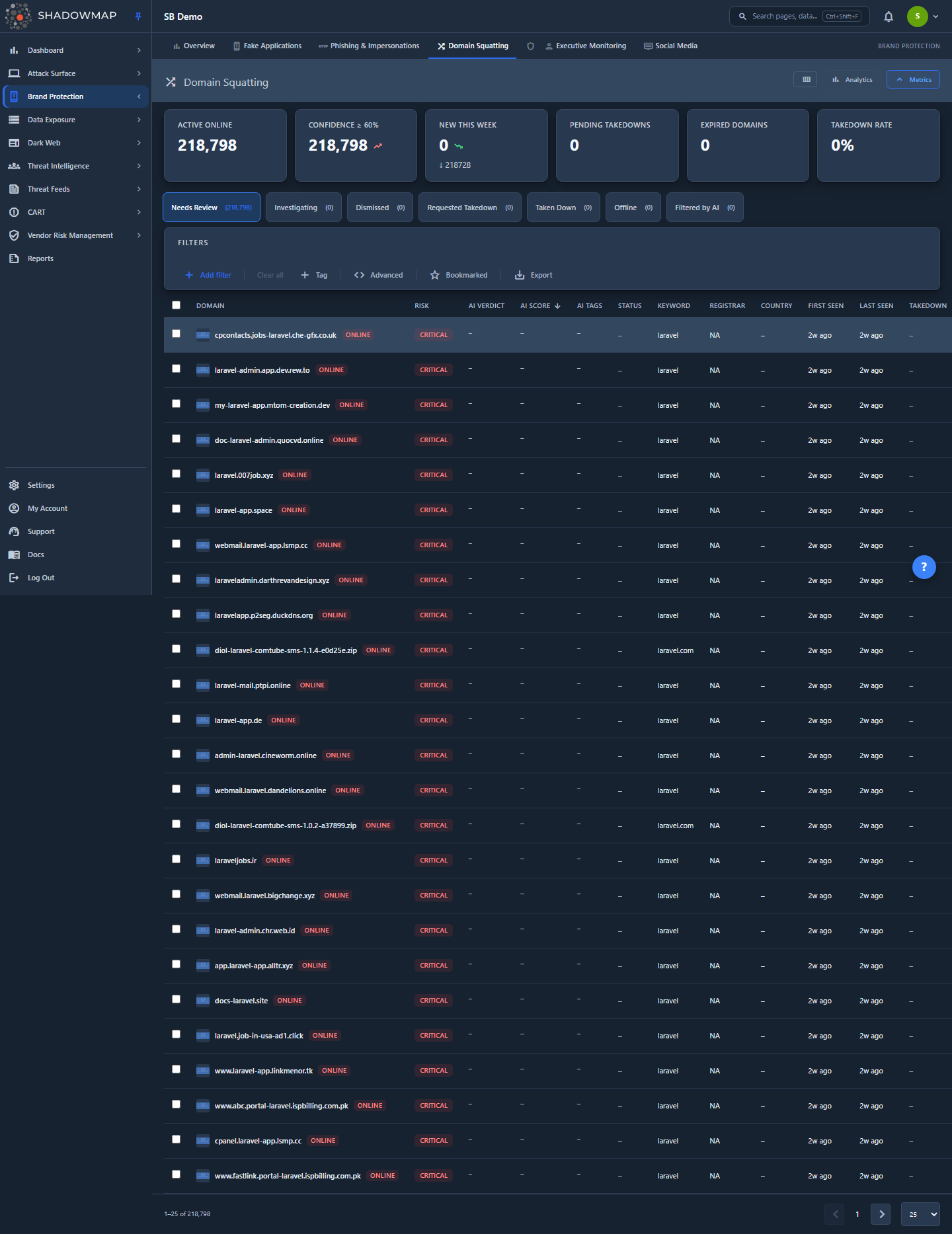
The page is a triage workspace organized around a status-tab table. Each row is one squatting candidate domain, scored by a Risk badge, annotated with whether it currently serves live content, and decorated with registration and infrastructure metadata. Tenants with AI review enabled also see an AI verdict, score, and tags on every row. Above the table sit a six-card metrics strip (posture KPIs), a collapsible analytics panel (trend and distribution charts), and a full filter/search bar. Selecting a row opens a detail drawer with the full domain profile, DNS records, detected technologies, and comments.
The default landing tab is Needs Review — the queue of newly discovered, live, unprocessed domains. Analysts work this queue down by accepting genuine threats, dismissing false positives, placing parked domains under monitoring, or initiating takedowns.
Where this fits
Domain Squatting answers "who is registering domains that impersonate us?" It pairs with Phishing & Impersonations, which catches the malicious pages and URLs — a squatted domain is frequently the host that later shows up there. Confirmed squatting domains can be escalated through the platform Takedowns workflow.
How it works
These are the mechanics you cannot infer from the UI.
Discovery: how candidate domains are generated
ShadowMap takes your brand keywords (the names ShadowMap monitors for your organization) and runs them through a permutation engine — a fuzzer — that generates thousands of plausible lookalike variants across many techniques (see Squatting techniques below). Each generated variant is checked against domain registration data; any variant that has actually been registered becomes a candidate and is enriched. The fuzzer field on every domain records which permutation technique surfaced it (for example homoglyph, addition, omission, transposition, tld-swap), so you can tell why a domain was flagged.
Because discovery starts from registered domains only, an entry in this module means the lookalike exists and is owned by someone — it is not a hypothetical. Whether it is dangerous is the next question, which the risk score and live-content checks answer.
Risk score (confidence percent)
Every domain carries a confidence_percent value (0–100) produced by the scanner. It reflects how confident ShadowMap is that the domain is a genuine, deliberate impersonation of your brand rather than an unrelated coincidence — weighing factors such as how closely the string matches your brand, the fuzzing technique used, whether the domain resolves and serves content, registration recency, and infrastructure signals.
The list and drawer translate that raw percentage into a Risk badge using fixed bands:
| Risk badge | confidence_percent | Read it as |
|---|---|---|
| Critical | ≥ 80 | Almost certainly a deliberate impersonation — prioritize |
| High | 60–79 | Strong impersonation signal |
| Medium | 40–59 | Plausible, needs analyst judgement |
| Low | 20–39 | Weak match — often a coincidental string |
| Info | 0–19 | Minimal signal |
Sort and filter by risk
The Risk column is sortable, and the Risk Level filter lets you scope the queue to a confidence threshold. By default the queue is sorted by First Seen (newest first); on the Needs Review tab, tenants with AI review enabled instead default to AI Score (highest first, un-scored rows last). Sort by Risk whenever you want the most likely impersonations at the top.
Live status vs. workflow status
Two independent dimensions describe each domain, and it is important not to conflate them:
- Live status (
is_live) — an observed fact about the domain right now: is it Online (resolves and serves content), Offline (registered but not serving), or Accepted (an analyst has confirmed it as a genuine threat)? These are the only three values the scanner writes; takedown state is not anis_livevalue — it is tracked separately and surfaced through the Takedown column. A registered-but-parked domain isofflineuntil the attacker activates it — which is exactly why the Investigating workflow exists. - Workflow status (
response_status) — the disposition: Active (Needs Review), Monitoring, Investigating, False Positive (Dismissed), or Filtered by AI. Your triage actions set Active, Monitoring, and False Positive; AI review contributes the Investigating and Filtered by AI dispositions. The Investigating tab shows the Monitoring and Investigating dispositions together.
The status tabs combine both dimensions into the queues described under Status tabs.
Detection is continuous
ShadowMap re-runs squatting discovery on a recurring cadence, so newly registered lookalikes appear automatically in Needs Review, and the live status, HTTP status code, screenshot, and infrastructure data of known domains are refreshed on each cycle. A domain that was parked (offline) when first seen will flip to Online in a later scan if the attacker stands up content — the reason monitoring rather than dismissing borderline domains is the recommended play.
Triage decisions move domains, never delete them
Accept, Dismiss, Monitor, and Needs Review are bidirectional status moves. Dismissing a domain as a false positive does not erase it — it leaves the active queue but is still visible under the Dismissed tab and can be restored to Needs Review later. Accepting a domain marks it as a confirmed threat (it takes an Accepted live-status badge) but keeps it in the active queue rather than moving it to a separate tab. Custom tags, comments, bookmarks, and takedown state are preserved across moves.
Understanding the data
Columns
The table is column-customizable (gear icon in the header). The Domain column is always shown; the rest can be toggled.
| Column | Description |
|---|---|
| Domain | The squatting domain, with a favicon/screenshot thumbnail and a live-status badge (Online / Offline / Accepted) |
| Risk | Confidence band badge — Critical / High / Medium / Low / Info (see Risk score) |
| AI Verdict | AI review's advisory disposition for the domain (see AI review) — shown only when AI review is enabled for your tenant |
| AI Score | AI review's confidence score, sortable — shown only when AI review is enabled |
| AI Tags | Labels AI review attached to the domain — shown only when AI review is enabled |
| Status Code | Last observed HTTP response code, color-coded (2xx green, 3xx amber, 4xx/5xx red) — empty if the domain did not respond |
| Keyword | The brand keyword this domain was matched against |
| Registrar | The registrar where the domain was registered (useful for spotting registrar patterns across a campaign) |
| Country | Country of the resolved IP / registration |
| Fuzzer | The permutation technique that surfaced the domain |
| IP | The IP the domain currently resolves to |
| Technologies | Web technologies detected on the live page (first three shown) |
| Registered | Domain registration date (relative time) |
| Expires | Registration expiry — shown in red and tagged EXPIRED if past |
| First Seen | When ShadowMap first detected the domain |
| Last Seen | When ShadowMap last observed the domain in a scan |
| Takedown | Current takedown-request state badge |
| Comments | Count of internal analyst comments on the domain |
| Custom Tags | Any custom tag key:value pairs applied |
Sortable columns: Domain, Risk, AI Score (when AI review is enabled), Status Code, Country, Registered, Expires, First Seen, Last Seen.
Status tabs
Findings are split into workflow queues. Each tab shows a live count.
| Tab | What it contains |
|---|---|
| Needs Review | Default queue — active, unprocessed domains (Online, Offline, or Accepted live-status) awaiting triage, excluding anything already in the takedown flow |
| Investigating | Domains under active watch — this queue combines the analyst Monitoring disposition and AI review's Investigating disposition (typically registered-but-parked lookalikes that may be weaponized later) |
| Dismissed | Domains investigated and marked false positive / non-threat (e.g. a legitimate partner or subsidiary domain that matched a keyword) |
| Requested Takedown | Domains for which a takedown request has been initiated and is in flight |
| Taken Down | Domains that have been successfully taken down |
| Offline | Domains the scanner observed go offline on their own — registered but no longer serving content, and not taken down through ShadowMap |
| Filtered by AI | Domains automatically set aside by AI review as non-actionable — shown only when AI review is enabled for your tenant |
Live-status badges
The badge next to each domain name reflects is_live:
| Badge | Meaning |
|---|---|
| Online | Resolves and serves content right now (highest urgency) |
| Offline | Registered but not currently serving content |
| Accepted | Confirmed threat |
AI review
For tenants with AI review enabled, ShadowMap adds an assisted-triage layer on top of the risk score. Three advisory columns appear on every row — AI Verdict, AI Score (sortable), and AI Tags — and two matching filter fields (AI Assessment and AI Tags) become available. Domains that AI review sets aside as non-actionable move into the Filtered by AI queue, and domains it flags for a closer look carry the Investigating disposition (surfaced in the Investigating tab). AI review is advisory: it never files takedowns or overrides your triage decisions, and the whole surface — columns, filters, and the Filtered by AI tab — is hidden entirely for tenants without the feature.
Squatting techniques the fuzzer detects
The Fuzzer field tells you which class of impersonation surfaced a domain. ShadowMap generates and checks variants across all of these:
| Technique | Example (brand shadowmap) | What it is |
|---|---|---|
| Typosquatting | shadwmap.com | Common misspellings and keyboard-adjacent character substitutions |
| Homograph / homoglyph | shad0wmap.com | Visually similar character swaps (0↔o, 1↔l, rn↔m), including internationalized-domain (IDN) homographs |
| TLD squatting | shadowmap.xyz | Your exact brand on a different top-level domain (.xyz, .io, .net, .info, …) |
| Combosquatting | shadowmap-login.com | Your brand combined with bait words (login, secure, verify, update, support) |
| Subdomain abuse | shadowmap.malicious-host.com | Your brand used as a subdomain on an attacker-controlled domain |
| Bitsquatting | shadowmaq.com | Single-bit errors that occur during DNS resolution |
Filtering & search
The filter bar supports field-level filtering and free-text search. Available filter fields:
| Filter | Use it to |
|---|---|
Availability status (is_live) | Scope to online vs. offline domains |
| Keyword | Filter to a specific monitored brand keyword |
| Domain Name | Search by domain string |
| Status | Filter by the domain's scanner status (Open / New / Takendown / Close) — the raw status column, distinct from the workflow disposition driven by the tabs |
| Fuzzer | Isolate a single squatting technique |
| Country | Filter by resolved-IP / registration country |
| Status Code | Filter by last HTTP response code |
| Technologies | Find domains running a specific technology |
| Tag Rule | Filter by an automated tag-rule match |
| SLA Policy | Filter by applied SLA policy |
Risk Level (confidence_percent) | Filter by confidence threshold/band |
| Registered On | Filter by registration date |
| First Seen | Filter by the date ShadowMap first detected the domain |
| Bookmarked | Show only bookmarked domains |
AI Assessment (ai_verdict) | Filter by AI review verdict — available only when AI review is enabled |
| AI Tags | Filter by an AI-applied label — available only when AI review is enabled |
Two quick toggles sit beside the filter bar:
- Bookmarked — star toggle that limits the list to domains you have bookmarked.
- Export — generates an Excel export of the current view, honoring the active tab, filters, search, and sort. Exports run as a background job and download when ready.
Hunt registrar / infrastructure patterns
Sort or filter by Country, and surface the Registrar and IP columns, to cluster a coordinated campaign — attackers frequently register many lookalikes through the same registrar or onto the same hosting infrastructure. The analytics panel's Top Registrars and Top Countries charts surface these clusters automatically.
Metrics & analytics
KPI cards
The metrics strip shows six posture cards. Most are clickable and jump you to the matching queue or filter.
| Card | What it counts |
|---|---|
| Active Online | Live, active domains currently online (with a week-over-week delta) |
| Confidence ≥ 60% | Active domains scored at or above 60% confidence (High + Critical bands) |
| New This Week | Domains first discovered in the last 7 days |
| Pending Takedowns | Domains in the takedown-requested state |
| Expired Domains | Active domains whose WHOIS registration has lapsed |
| Takedown Rate | Percentage of takedown requests that completed successfully |
Analytics panel
The collapsible analytics panel (toggle in the header) renders four charts for pattern analysis:
- 30-Day Discovery Trend — new domains vs. takedowns per day.
- Risk Distribution — breakdown across the confidence bands.
- Top Countries — where flagged domains are hosted/registered.
- Top Registrars — which registrars are issuing the lookalikes.
Detail view
Selecting a row opens the detail drawer; Open full page in the drawer header takes you to a standalone detail page for the same domain. The drawer shows:
- Profile strip — the domain name as a clickable external link (opens the squatting site in a new tab), plus live-status, risk, and exact-confidence-percent badges, and a page screenshot.
- Action bar — Accept, Dismiss, Monitor, and (with permission) Takedown.
- Overview tab — Infrastructure (IP, country, HTTP status, fuzzer, response status, page title), Detection (keyword, first/last seen, takedown-requested date), Registration (registrar, registered/expires dates with EXPIRED tag, nameservers), detected Organizations, and Custom Tags.
- DNS tab — the domain's DNS records (A, AAAA, MX, NS, TXT, CNAME, …) with values.
- Tech tab — full list of detected web technologies.
- Comments tab — internal analyst comments thread.
Visiting squatted domains
The drawer links the live domain directly. Treat squatting sites as hostile — they may host phishing kits, malware, or drive-by content. Open them only in a sandboxed/isolated browser environment.
Taking action
Per-row and drawer actions
Each row exposes inline action buttons (also available in the detail drawer and via keyboard shortcuts during triage):
| Action | Shortcut | Effect |
|---|---|---|
| Bookmark | s | Flag the domain for later / your personal queue |
| Accept | a | Confirm as a genuine brand threat (Accepted live-status badge; stays in the active queue) |
| Dismiss | d | Mark as false positive / non-threat → Dismissed |
| Monitor | — | Place under passive monitoring → surfaces in the Investigating tab |
| Takedown | — | Open the takedown request form (permission-gated) |
| Comment | — | Add an internal note (supports comment templates) |
| Share | — | Share the finding via a configured integration |
Bulk actions
Select rows with the checkboxes to reveal the bulk action bar: Needs Review, Accept, Dismiss, Monitor, Takedown, Bookmark, Add Tag, and Share apply to every selected domain at once.
Takedowns
The Takedown action (visible only to users with takedown permission) opens a request form that sends a takedown notice to the domain's registrar / hosting provider. Submitting moves the domain into Requested Takedown, and successful takedowns land in Taken Down. Takedown activity flows into the platform-wide Takedowns tracking.
Recommended workflow
- Start in Needs Review. It opens sorted by First Seen (newest first), or by AI Score when AI review is enabled; sort by Risk to bring the most likely impersonations to the top.
- Prioritize Online + Critical/High domains: a live page hosting content is the immediate danger.
- Open each domain's drawer — inspect the screenshot, DNS, technologies, and registrar before deciding.
- Accept confirmed threats and request takedowns for live malicious domains.
- Monitor registered-but-parked lookalikes — they may be activated later, and monitoring re-checks them each scan.
- Dismiss legitimate matches (partner, subsidiary, or your own defensive registrations) as false positives.
Common questions
Does a domain in this list mean it's malicious? No. The list contains registered lookalike domains, which means someone owns a string resembling your brand. The Risk score estimates how likely it is a deliberate impersonation, and the live status tells you whether it is actively serving content. Many entries are parked, defensive, or coincidental — that is what triage is for.
Why is a domain marked Offline if it was flagged as a threat? Offline means the domain is registered but not currently serving content (parked). Attackers commonly register lookalikes well ahead of a campaign and activate them later. Place these under Monitoring rather than dismissing — ShadowMap re-checks them, and they flip to Online automatically if content appears.
What's the difference between this and Phishing & Impersonations? Domain Squatting tracks the domains registered against your brand. Phishing & Impersonations tracks malicious pages and URLs (which frequently live on a squatted domain). Use Domain Squatting to spot the impersonating infrastructure early; use Phishing to action live malicious content.
How is the confidence/Risk score calculated? It is a scanner-computed value (0–100) weighing string similarity to your brand, the fuzzing technique, whether the domain resolves and serves content, registration recency, and infrastructure signals. The UI maps it into Critical (≥80), High (60–79), Medium (40–59), Low (20–39), and Info (0–19) bands.
Can I get alerted to new squatting domains automatically? Yes — new discoveries land in Needs Review each scan cycle, and you can route notifications through your configured integrations and alert preferences. SLA policies can also be applied to drive triage deadlines.
What does the Fuzzer field tell me? It records which permutation technique surfaced the domain (typo, homoglyph, TLD swap, combo, subdomain abuse, bitsquat). It is useful both for understanding why a domain was flagged and for filtering your queue to a specific impersonation class.
Related
- Phishing & Impersonations — malicious pages, often hosted on squatted domains; the natural escalation target for an Online + Accepted domain.
- Brand Monitoring overview — the parent module covering all brand-impersonation surfaces.
- Takedowns — the platform-wide takedown request and tracking workflow this module feeds into.
- WHOIS — look up registration details for any domain during investigation.
- SSL Certificates — certificate transparency is another lens on attacker infrastructure registered against your brand.
- Custom Tags and Tag Rules — automate labeling of squatting domains by campaign, registrar, or risk.