
Forum Discussions
Forum Discussions surfaces posts on dark web forums, ransomware leak sites, and underground marketplaces that mention your organization, brands, domains, or key personnel. These are the venues where threat actors advertise access, sell stolen data, and discuss vulnerabilities — early visibility here buys your team time to respond before an incident materializes.
Overview
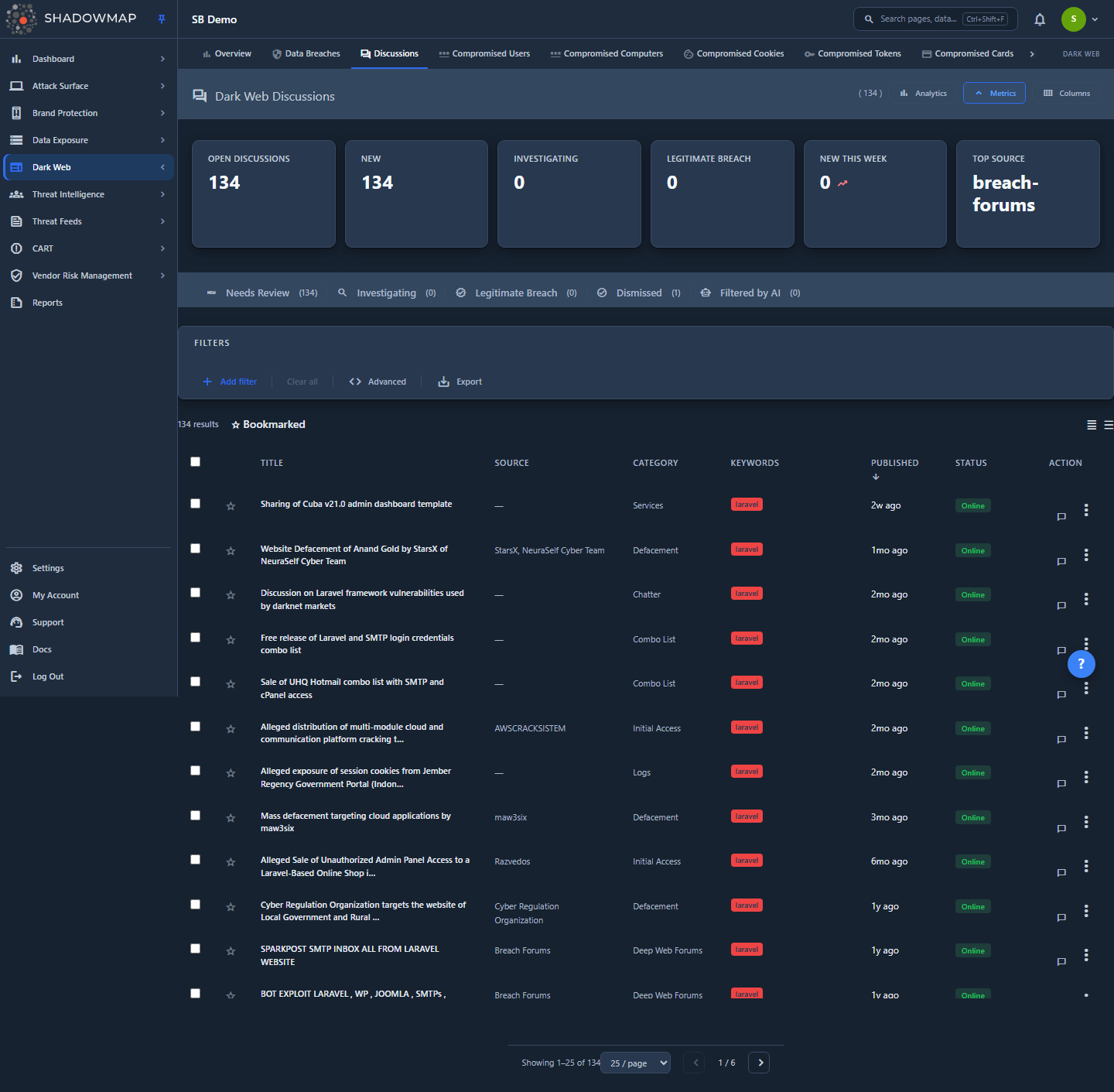
The page is a triage queue. A KPI metrics strip sits at the top, an optional analytics panel below it, then status tabs, filters, and a data table of individual discussions. Each row is a single forum post or leak-site entry matched to your organization. You move records through a review workflow (Needs Review → Investigating → Legitimate Breach / Dismissed, plus an automated Filtered by AI state), bookmark and assign them, and export or escalate to a takedown.
The default landing tab is Needs Review (/darkweb/discussions-v2/active) — the unreviewed queue your analysts work through first.
How it works
Where the data comes from. ShadowMap continuously collects posts from a curated set of dark web sources — established forums (XSS, Exploit.in, BreachForums, RaidForums and successors), ransomware leak/auction sites (Conti, Clop, Hive, Everest, Lorenz, Ragnar Locker, Cuba and many others), and aggregated dark web intelligence feeds. A post becomes a "discussion" for your tenant only when its content matches your monitored keywords — your brand names, domains, executive names, and any custom tag rules you have configured. Every record is scoped to your company_id; you never see another tenant's matches.
Keyword matching drives detection. Each discussion stores the specific keywords that triggered it. Those keywords appear as chips in the list and on the detail view, so you can immediately see why a post matched. If a source name or brand mention is generic and producing noise, that is a signal to refine your keywords or tag rules rather than to manually dismiss each hit.
Two independent status dimensions. Every discussion carries two separate states, and conflating them is the most common source of confusion:
- Status (
Online/Takendown/False Positive) describes the post's state in the wild — whether the source content is still live, has been taken down, or was flagged as a false match. - Response status (
Needs Review/Investigating/Legitimate Breach/Dismissed/Filtered by AI) is your team's workflow state — where the record sits in your triage process. The status tabs filter on response status.
What the tabs actually count. The five tabs and the KPI cards do not simply count every row by response status. The counts exclude any discussion whose post-level Status is Takendown, and any discussion that has an active takedown request open against it. This keeps the tab badges, the metrics strip, and the paginated list in exact agreement — a record you have escalated to takedown drops out of the working queues rather than inflating them. As a result, the Open Discussions KPI is the sum of the three actionable buckets — Needs Review, Investigating, and Legitimate Breach — after those exclusions. Dismissed and Filtered by AI each keep their own tab badge but are deliberately left out of that headline, so it is neither a raw row count of everything ever ingested nor a sum of all five tabs.
New This Week and trend. The New This Week KPI counts discussions ingested in the trailing 7 days. The trend sparkline is built from monthly ingestion counts over the last six months, so an upward trend means your dark web exposure is growing. Trend color follows threat semantics: red/up is worse, green/down is better.
AI triage (when enabled). If AI review is enabled for your tenant, each discussion can carry an AI verdict, a numeric AI score, and AI tags, surfaced as three extra table columns. Matches that automated triage classifies as benign are moved to the Filtered by AI response state and pulled out of the Needs Review queue, so analysts spend their time on what survived triage rather than dismissing noise by hand. The Filtered by AI tab is shown to every tenant; the AI verdict/score/tag columns appear only when AI review is enabled and the loaded rows actually carry AI data.
SLA clock. Discussions are SLA type 5. If your tenant has an SLA policy configured for this module, the response clock starts when a discussion is ingested and is satisfied when you move it out of the Needs Review state. SLA breaches roll up into the dashboard SLA views.
Understanding the data
Columns
The table is column-customizable (the Columns button in the header toggles visibility; your choice is remembered in the browser). Default and available columns:
| Column | Shown by default | Description |
|---|---|---|
| Title | Yes | Subject line of the forum post or leak entry, truncated in the row. |
| Source | Yes | The forum, leak site, or feed the post came from (e.g. xss, exploit-in, breached-forum, conti-news, hive, dwi_ransomware). |
| Category | Yes | Content classification assigned during ingestion. |
| Keywords | Yes | The monitored keywords that matched this post (first three shown as chips, with a +N overflow indicator). |
| Published | Yes | When the post was published on the source, shown as relative time. Sorted on by default (newest first). |
| Status | Yes | Post-level state: Online, Takendown, or False Positive. |
| Response | No | Your workflow state label (Active, Investigating, Legitimate, Dismissed, Filtered by AI; the Needs Review state displays here as Active). Hidden by default because the active tab already conveys it. |
Sorting: click any column header to sort; click again to reverse. The default sort is Published, descending. The Keywords column is not sortable — it is a multi-value match set with no single sort key, so its header shows no sort affordance.
For tenants with AI review enabled, three additional read-only columns appear to the right of the set above — AI Verdict, AI Score, and AI Tags — populated from automated triage. They are not part of the Columns customizer; they appear or hide automatically depending on whether the loaded rows carry AI data.
Status tabs (response workflow)
| Tab | Meaning |
|---|---|
| Needs Review | Ingested and not yet triaged. Your primary work queue. |
| Investigating | A discussion your team is actively researching. |
| Legitimate Breach | Confirmed as a genuine, relevant exposure of your organization — a real finding. |
| Dismissed | Triaged and closed as a false positive or not actionable. |
| Filtered by AI | Matches that automated triage classified as benign. Kept out of Needs Review so they do not add noise; open this tab to audit the AI's calls. |
Each tab shows a live count badge driven by the summary endpoint, with the takedown exclusions described above already applied.
KPI metrics strip
Six cards summarize the queue. Several are clickable shortcuts:
| Card | Clickable | Action |
|---|---|---|
| Open Discussions | No | Reference figure — the sum of the three actionable buckets (Needs Review + Investigating + Legitimate Breach). |
| New | Yes | Switches to the Needs Review tab. |
| Investigating | Yes | Switches to the Investigating tab. |
| Legitimate Breach | Yes | Switches to the Legitimate Breach tab. |
| New This Week | No | 7-day intake with a trend indicator. |
| Top Source | Yes | Applies a filter on the most active source so you can drill into it. |
Analytics panel
Collapsed by default; expand it from the header to see four charts: a 30-day discussion trend line, a status distribution donut, a top-sources bar chart, and a category distribution donut. Use these to spot which sources and content categories dominate your exposure.
Filtering and search
The filter bar supports field-based queries (FQP) on:
| Filter | Notes |
|---|---|
| Source | Forum / leak site / feed name. |
| Category | Content classification. |
| Title | Free-text within the post title. |
| Keywords | The matched monitored keyword. |
| Published Date | Date-range filter. |
| Tag Rule | Filter by a configured tag rule. |
| SLA Policy | Filter by the applied SLA policy. |
Filters reset when you switch tabs. The Bookmarked toggle in the toolbar narrows the visible list to records you have starred. A Compact / Expanded density toggle controls row height. Page state (page number, page size, sort field, sort order) is reflected in the URL, so a sorted, paginated position survives a reload. Active filter rules are not encoded in the URL — reloading the page restores your sort and page but clears applied filters.
Detail view
Open any row to inspect it — clicking the row, pressing Enter on the focused row, or choosing Open Detail from the row action menu opens a side drawer. From the drawer header, the Open full page button navigates to the full detail page.
Drawer — fast triage without leaving the list. Shows Title, Source, Category, Status, Published, the source URL, matched keywords (grouped by the asset type — domain, email, IP, and so on — that triggered them), the post description (rendered as plain text), and a proof-of-concept image if one was captured. Prev/Next buttons walk through the result set. Status-change buttons (Investigating / Legitimate / Dismissed) act in place.
Full detail page — three tabs:
- Overview — metadata grid (Title, Source, Category, Published, Ingested), keyword chips, the full description, and the captured POC image.
- Evidence — the extracted source URL and any IOCs; shows an empty state when none were extracted.
- Comments — analyst comments and attachments added to the record.
A status banner at the top of the detail page restates both the post Status and your Response status.
Plain-text rendering
Forum content is rendered as plain text, never as live HTML. This is deliberate: dark web post bodies are untrusted and could otherwise carry script payloads. Links in evidence are shown but not auto-followed.
Taking action
Per-row (from the action menu, drawer, or detail page) and in bulk (select rows to reveal the bulk action bar), you can:
- Mark Investigating / Legitimate / Dismissed — move records through the response workflow. Available transitions exclude the current tab's own status.
- Bookmark — star a record (the toolbar toggle then filters to starred items).
- Assign to — assign selected discussions to a team or person, or clear the assignee. Filter the assignee list as you type.
- Comment — add internal notes; comment templates configured for this module are available inline.
- Share — push selected records to a connected integration (SIEM, ticketing, chat).
- Export — download the current filtered view to Excel. Export respects the active tab and filters.
Triage with the keyboard
The list supports keyboard triage: j/k (or arrow keys) move between rows, Enter opens the detail drawer, Space toggles selection, s bookmarks, Esc closes the drawer, and ? shows the shortcut help overlay.
Takedowns drop records from the active queues
When you open a takedown request against a discussion (or the post is marked Takendown), it is excluded from every tab's counts and lists (Needs Review, Investigating, Legitimate Breach, Dismissed, Filtered by AI). This is intended — the record is no longer part of your open triage backlog — but it means a discussion you escalated will appear to "disappear" from the tabs.
What these discussions may indicate
Use the source, keywords, and content to judge intent and urgency:
- Selling access — initial access brokers advertising RDP, VPN, or shell access to your network. A frequent precursor to ransomware or data theft; treat as high priority.
- Data for sale — actors offering databases, credentials, or documents attributed to your organization.
- Vulnerability discussion — actors sharing exposed services, misconfigurations, or exploits affecting your infrastructure.
- Attack planning / targeting — coordinated mentions of your organization or sector.
- Reputation mentions — your brand appearing in broader discussion; lower urgency but worth tracking for trend.
When assessing a single post, weigh specificity (does it name real systems, IPs, or employees?), recency, the poster's standing on the forum, supporting proof (screenshots, sample data), and pricing signals — cheap access can mean the actor has already extracted value, while premium pricing suggests fresh, exclusive access.
Common questions
Why did this post match my organization? Open it and read the Keywords chips — they list the exact monitored terms (brand, domain, executive name, or tag rule) that triggered the match. If matches are too broad, refine the keywords driving them.
A discussion I escalated to takedown vanished from the tabs. Is that a bug? No. Discussions with an active takedown request, or whose post Status is Takendown, are deliberately excluded from the tab counts and lists so the open-triage queues stay accurate.
What's the difference between "Status" and the tab I'm on? Status (Online / Takendown / False Positive) is the post's state in the wild. The tabs filter on response status — your team's workflow state. They are independent.
Why doesn't "Open Discussions" match the raw number of posts I expected? Open Discussions is the sum of the three actionable buckets (Needs Review, Investigating, Legitimate Breach) after takendown and active-takedown records are excluded. Dismissed and Filtered by AI are not counted in it — so it is neither a raw count of everything ever ingested nor a sum of all five tabs.
Can I get notified of new discussions instead of polling this page? Yes — configure alerting so new matches generate notifications. See Alerts.
Is the forum content safe to read in the browser? Yes. All post bodies render as plain text with no live HTML or auto-followed links.
Related
- Dark Web Overview — rolls up discussions alongside the other dark web sources into one exposure summary.
- Telegram — equivalent monitoring of Telegram channels, where many actors now coordinate instead of forums.
- Data Breaches — structured breach datasets, often the data being advertised in these discussions.
- Stealer Logs — infostealer-harvested credentials; the access being sold in forum posts frequently originates here.
- Alerts — configure notifications for new discussion detections.
- Takedowns — how takedown requests work, including why an escalated discussion leaves the active queues.