
Phishing URLs
ShadowMap continuously scans the internet for web pages that impersonate your organization — credential-harvesting login clones, fake portals, malware-serving lookalikes, and any site fraudulently using your brand identity. This module is the analyst console for that surface: it surfaces each suspected impersonation, lets you triage it through a defined lifecycle, and drives a takedown workflow that emails the hosting provider or registrar.
The module is labelled Phishing & Impersonations in the product.
Overview
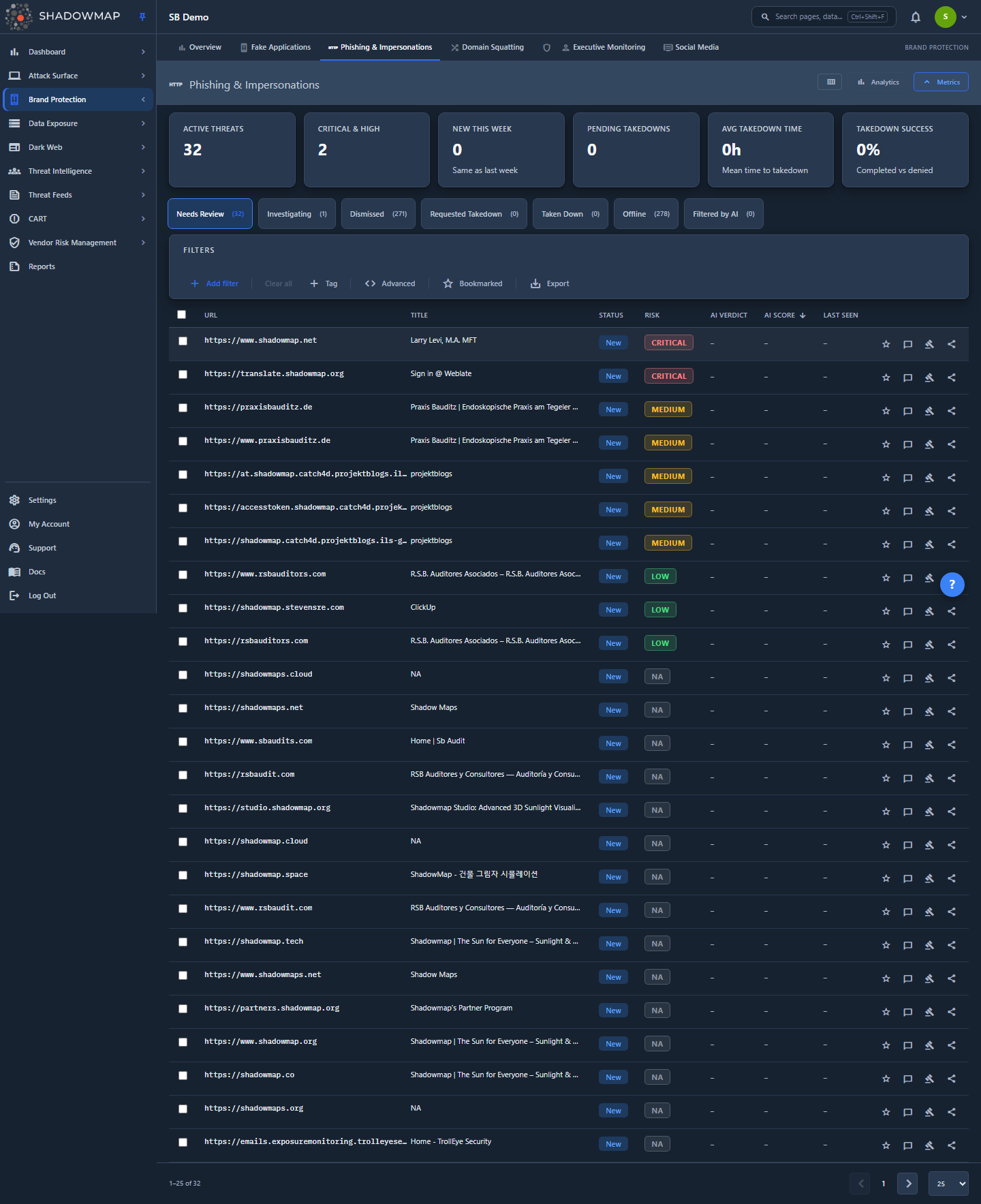
The page is a single threat queue with three layers stacked above the table:
- Metrics strip — six KPI cards covering the full triage-to-takedown lifecycle (active threats, critical/high count, new this week, pending takedowns, average takedown time, takedown success rate). Each card is clickable and jumps to the relevant tab. Toggle it from the Metrics button in the page header.
- Analytics panel — four charts: a 30-day threat trend (new threats vs. completed takedowns), risk distribution donut, top targeted brand keywords, and geographic distribution of hosting. Toggle it from the Analytics button.
- Status tabs — the lifecycle stages (Needs Review, Investigating, Dismissed, Requested Takedown, Taken Down, Offline, and — for tenants with AI review enabled — Filtered by AI). Each tab shows a live count. There is no "All" tab.
Below those sit the search/filter bar, an optional bulk-action bar (appears when rows are selected), the results table, and pagination. Clicking any row opens a slide-out detail drawer without leaving the list.
Every record is a URL that matched one of your brand keywords. The default landing tab is Needs Review — the queue of newly detected, live impersonations that no analyst has actioned yet.
How it works
These mechanics are not visible in the UI but determine what you see and how findings move through the queue.
How impersonations are detected
ShadowMap identifies candidate phishing pages by combining several discovery methods, then crawling and scoring each one:
- Brand-keyword domain monitoring — newly registered and observed domains are matched against your configured brand keywords (the keyword that triggered a match is stored on the record and shown as Keyword).
- Certificate Transparency logs — TLS certificates issued to lookalike hostnames are picked up as they are logged.
- Content analysis — suspicious pages are fetched and their HTML, title, and on-page text are analysed for impersonation signals; a full-page screenshot is captured.
- Third-party phishing feeds — known phishing-campaign data is ingested from external intelligence sources and correlated against your brand.
Detection is keyword-driven, so the breadth and precision of this module depend directly on your configured brand keywords. Tune them in Settings → Tags & Rules.
The two state axes: live status and response status
Every record carries two independent states. Understanding the split is the key to using the tabs correctly.
- Live status (
online/offline) — set by the scanner. Is the page currently reachable and serving content? A page that was live yesterday and is dead today flips to Offline automatically on the next scan. - Response status — the triage disposition. Set by your analysts — Active (untouched), Monitoring, Accepted, or Dismissed (false positive) — or, on AI-enabled tenants, written by AI review as Investigating or Filtered by AI (Malicious is also a possible disposition). Several dispositions share a tab: Monitoring, Malicious, and AI-Investigating all surface under Investigating, and Accepted and Dismissed both resolve into Dismissed.
The tabs are built from a combination of both axes plus the takedown record. For example, Needs Review = online and response-status Active and no takedown requested. Marking a URL Accepted changes only the response status; it does not change whether the page is live.
What each status tab actually queries
| Tab | Records it contains |
|---|---|
| Needs Review | Live (online) URLs with response status Active and no takedown requested. The default queue. |
| Investigating | Live URLs with no takedown requested and a working disposition — Monitoring, Malicious, or AI-flagged Investigating — plus URLs whose takedown request terminally failed (denied or counter-notice) while the page is still live. |
| Dismissed | URLs an analyst resolved: response status Dismissed (false positive) or Accepted, with no takedown requested. |
| Requested Takedown | URLs with a takedown request in flight — Requested, On-Going, Pending with Hosting, Awaiting Response, or not yet set — that is neither completed nor terminally failed. |
| Taken Down | URLs whose takedown request reached Completed (successfully removed). |
| Offline | URLs that no longer resolve (offline or never checked) and are not analyst-dismissed/accepted or AI-filtered, with no takedown requested. |
| Filtered by AI | URLs the AI review pass filtered out as noise (response status Filtered by AI), with no takedown requested. Shown only for tenants with AI review enabled. |
The tabs render in that order, left to right. There is no "All" tab; a queue-wide view is only reachable through a filter-only deep link, which the page loads unscoped.
Tab keys in deep-links
Each tab maps to a canonical key that appears as ?tab= in deep-link URLs and saved filters: needs_review, investigating, dismissed, takedown_requested, taken_down, offline, and filtered_by_ai. This only matters if you bookmark or share filtered URLs.
Risk score
Each finding carries a Risk rating — Critical, High, Medium, Low, or NA. Risk is computed by the scanner from impersonation signals (keyword match strength, content similarity, infrastructure, and threat-intel correlation), not assigned by analysts. It is the default sort column, so the highest-risk impersonations land at the top of each tab — except on Needs Review for AI-enabled tenants, where the queue defaults to AI Score instead (see AI review below).
Confidence score
The detail view shows a Confidence value — a normalized percentage indicating how closely the page matches known impersonation patterns. Risk answers "how dangerous if real"; confidence answers "how sure are we this is an impersonation". Use confidence to prioritise which Needs-Review items to inspect first.
AI review
For tenants with AI review enabled, an automated pass scores and pre-triages incoming impersonations before an analyst sees them. When it is active, the queue gains:
- Three advisory columns — AI Verdict, AI Score (sortable), and AI Tags — inserted after Risk. On the Needs Review tab, AI-enabled tenants default-sort by AI Score (highest first) instead of Risk.
- A Filtered by AI status tab holding records the pass judged to be noise (response status Filtered by AI), keeping them out of Needs Review. AI review can also move a record to the Investigating disposition.
- Two extra filter fields — AI Assessment (the verdict) and AI Tags.
All AI surfaces are hidden entirely for tenants without the feature. For tenants with it enabled, the columns render whenever toggled on (they are part of the default set), showing a dash on any row that has no AI data yet.
Takedown lifecycle
Requesting a takedown is a distinct workflow from triage. When you submit a takedown request, ShadowMap records the request date and emails the relevant hosting provider or registrar. While the request is open (Requested → On-Going / Pending with Hosting / Awaiting Response) the URL sits in the Requested Takedown tab. A URL only reaches Taken Down when the request is marked Completed; if the request terminally fails (denied or counter-notice) while the page is still live, the URL returns to Investigating. Takedown actions and times also feed the "Pending Takedowns", "Avg Takedown Time", and "Takedown Success" metric cards. Phishing takedowns are tracked under SLA type 11 and roll up into the cross-module Takedown Requests view.
Understanding the data
Columns
The table is column-customizable (gear icon in the header). URL is locked and always shown; the rest can be toggled. By default the table shows a compact triage set — URL, Title, Status, Risk, Last Seen (plus AI Verdict and AI Score where AI review is enabled) — and the remaining columns are opt-in.
| Column | Description |
|---|---|
| URL | Full URL of the impersonation site. Always visible. Sortable. |
| Title | HTML <title> of the captured page. |
| Status | Lifecycle/live state badge (Online, Offline, Accepted, False Positive, Monitoring, Malicious, Req. Takedown, Taken Down, New). |
| Risk | Color-coded risk badge — Critical/High (red), Medium (amber), Low (blue). Sortable. |
| AI Verdict | AI review's disposition for the finding. Shown only when AI review is enabled. |
| AI Score | AI review's confidence/priority score. Sortable. Shown only when AI review is enabled. |
| AI Tags | Tags applied by AI review. Shown only when AI review is enabled. |
| IP | IP address hosting the page. |
| Country | Hosting country, with flag. |
| Domain | Registered domain of the URL. |
| Last Seen | When the scanner last confirmed the page, as relative time. Sortable. |
| Assigned To | Analyst the finding is assigned to, shown as initials. |
| Takedown | Takedown-request status badge, if any. |
| Custom Tags | Your own key/value tags applied to the finding. |
Status badge meanings
| Badge | Meaning |
|---|---|
| Online | Page is currently live and serving content. |
| Offline | Page no longer resolves or returns content. |
| New | Newly detected, not yet triaged. |
| Accepted | Confirmed as a genuine impersonation by your team. |
| Monitoring | Under active watch without immediate action. |
| Malicious | Confirmed as actively distributing malware. |
| Req. Takedown | A takedown request has been sent. |
| Taken Down | Successfully removed. |
| False Positive | Dismissed as a false positive. |
Filtering & search
The filter bar supports the standard ShadowMap query builder, plus two quick toggles to its right: Bookmarked (show only starred findings) and Export.
Available filter fields:
| Field | Use |
|---|---|
| Type | Filter by live/offline type. |
| Domain | A specific domain or registered host. |
| Status | Lifecycle status. |
| Risk | Critical / High / Medium / Low. |
| Status Code | HTTP response code returned by the page. |
| IP Address | Hosting IP. |
| Keyword | The brand keyword that triggered the match. |
| Country | Hosting country. |
| Organization | Detected hosting/SSL organization. |
| URL | Substring match on the URL. |
| Assigned To | Analyst assignment. |
| AI Assessment | The AI review verdict. Shown only when AI review is enabled. |
| AI Tags | Tags applied by AI review. Shown only when AI review is enabled. |
| Bookmarked | Starred findings only. |
| First Seen On | Date range of first detection. |
| Last Seen On | Date range of last confirmation. |
Filters combine with the active tab — the tab scopes the lifecycle stage, your filters narrow within it. From the detail page, clicking an IP or country pivots back to the list pre-filtered on that value.
Detail view
Clicking a row opens a slide-out drawer; the "Open full details" link expands the same record into a full detail page with tabs. The drawer supports prev/next navigation so you can review a queue sequentially without closing it, and exposes Accept, Investigating, Dismiss, and Takedown buttons in its footer (Takedown only with permission).
The detail page is organized into four tabs:
- Overview — page screenshot, full clickable URL, title, triggering keyword, confidence, domain, SSL organization, and any linked domains. The page header also carries the risk badge plus live-status and HTTP-code tags.
- Infrastructure — IP address, country, ASN, domain, SSL organization, reverse DNS, and the full DNS record set for the hosting infrastructure. IP and country are clickable pivots back into the filtered list.
- Intelligence — threat-intelligence IOC matches (category, type, value, and the source MISP event), and the observed redirect chain (each hop with its HTTP status code and timestamp). A Copy IOCs button copies the URL, IP, domain, ASN, and country in one block for pasting into a ticket, SIEM, or TIP.
- Activity — the current takedown status and the comment thread for the finding.
The drawer also offers a Comments tab for collaboration directly during triage.
Taking action
Per-finding actions
Availability varies by surface: the triage moves (Accept, Investigating, Dismiss, Request Takedown) sit in the drawer footer and the detail page header — and Accept, Dismiss, and Request Takedown are additionally driveable from keyboard triage; Bookmark, Comment, Request Takedown, and Share sit inline on each table row.
| Action | Effect |
|---|---|
| Accept | Confirms the finding as a genuine impersonation (response status Accepted); Accepted records resolve into the Dismissed tab. |
| Investigating | Places the finding under active watch (response status Monitoring); it moves to the Investigating tab. |
| Dismiss | Marks it a false positive (response status Dismissed) and removes it from active queues. |
| Request Takedown | Opens the takedown form (see below). |
| Bookmark | Stars the finding for quick recall via the Bookmarked filter. |
| Comment | Adds an internal note; supports comment templates. |
| Share | Shares the finding via configured sharing/integration channels. |
Additional state moves available in bulk: Online (push a record back into Needs Review) and Monitor (place under active watch — the same Monitoring disposition as Investigating).
Bulk actions
Select rows with the checkboxes to reveal the bulk-action bar: Accept, Dismiss, Online, Monitor, Takedown, Bookmark, Add Tags, and Share. Bulk operations apply to every selected URL at once and refresh both the list and the metric cards.
Requesting a takedown
The takedown form lets you select a reason — Phishing, Copyright Infringement, Fraud, or Brand Infringement — and submit. ShadowMap records the request date and dispatches the notification email to the hosting provider or registrar. The URL moves into Requested Takedown; once the provider acts and the request is marked Completed, it moves to Taken Down. Open requests can be escalated as a follow-up.
Takedown requires permission
The Takedown buttons (per-row, bulk, and footer) only appear if your role has takedown permission. If you don't see them, ask an administrator to grant the capability.
Keyboard triage
The list supports keyboard-driven triage for high-volume review: navigate rows, open the drawer (Enter), accept, dismiss, bookmark, request takedown, and close the drawer (Escape) — all without the mouse. See Keyboard Shortcuts.
Exporting
The Export control generates a downloadable report of the current view. The export honours the active tab, applied filters, search query, and sort order, so the file matches exactly what's on screen. See Exports.
Common questions
A page I confirmed as Accepted still shows "Online" — is that a bug? No. Live status (Online/Offline) and your triage decision (Accepted) are independent. Accepting confirms it's a real threat; the page stays Online until it actually goes down or you take it down. Use the takedown workflow to remove it.
Why did a URL disappear from Needs Review without anyone touching it? Needs Review only contains live URLs. If the page went offline between scans, it automatically moves to the Offline tab. It will return to Needs Review if it comes back online — or you can bulk-mark records Online to push them back manually.
What's the difference between Risk and Confidence? Risk rates how dangerous the impersonation is if genuine (Critical → Low); confidence rates how certain ShadowMap is that the page is an impersonation. Sort by Risk to prioritise impact; check confidence to decide which Needs-Review items to inspect first.
A real phishing page targeting us isn't showing up. Why? Detection is brand-keyword driven. If the lookalike domain or page content doesn't match any configured keyword, it won't surface. Add the missing brand terms, executive names, or product names under Settings → Tags & Rules. You can also add a URL manually if you discovered it through another channel.
What does "Taken Down" actually confirm? That a takedown request was submitted and its request status reached Completed. A URL with an open request sits in Requested Takedown, not Taken Down — even if the page already appears offline.
Can I get IOCs out for my SIEM or ticketing system? Yes. Open any finding and use Copy IOCs to copy the indicators in one block. The button on the full detail page's Intelligence tab copies the URL, IP, domain, ASN, and country; the quick-preview drawer's button copies the URL, IP, domain, and ASN. For bulk extraction, use Export.
Related
- Domain Squatting — lookalike and typosquatted domains, which frequently host the phishing pages tracked here.
- Fake Applications — impersonation that targets mobile app stores rather than the web.
- Social Media — impersonation accounts and pages, a common distribution channel for phishing links.
- Brand Monitoring Overview — the parent module and its cross-feature dashboard.
- Takedown Requests — cross-module view of every takedown request, including the phishing takedowns initiated here.
- SLA Violations — tracks phishing response/takedown timeliness against SLA policy.