
Fake Applications
Fake Applications surfaces mobile apps published to the Google Play Store and Apple App Store that match your organization's brand, name, or developer identity but are not yours. These are the rogue, cloned, repackaged, or impersonating apps adversaries use to harvest credentials, distribute malware, intercept OTPs, or simply ride on your brand's reputation. The page is your triage queue: confirm what is genuinely yours, dismiss what is harmless, and escalate what is not for takedown.
Overview
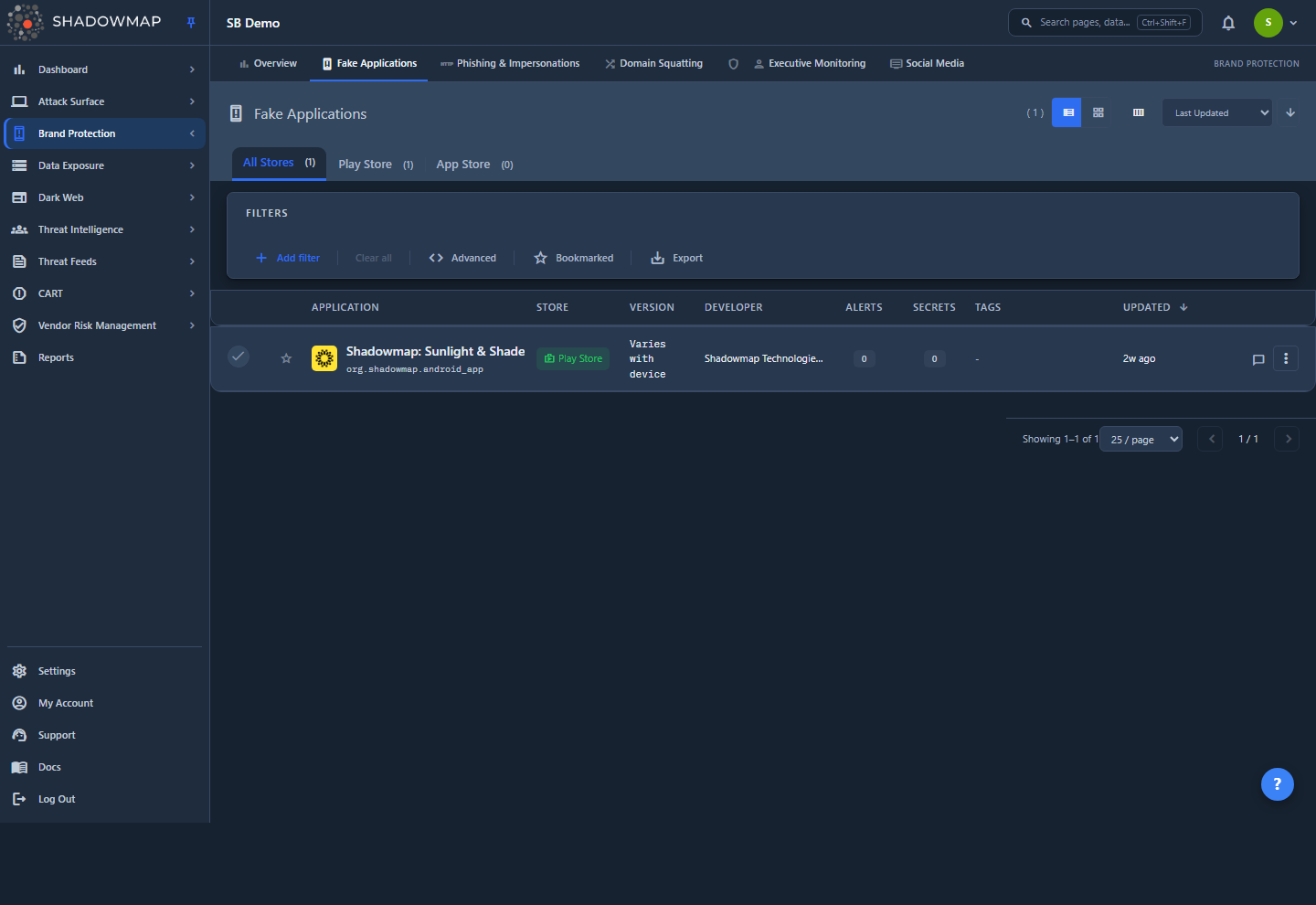
The page lives under Brand Protection → Fake Applications and opens on the Play Store tab. Three store tabs sit across the top, each with an open-count badge:
- All Stores ( N ) — every open fake app across both stores.
- Play Store ( N ) — fake Android apps matched to your brand.
- App Store ( N ) — fake iOS apps matched to your brand.
Each tab is a bookmarkable URL (/brand-monitoring/fake-applications/play-store, /app-store, or /all), so you can share a link straight to a store.
Below the tabs is a filter bar and the app list. The list renders two ways — pick the layout with the view toggle in the page header:
- Table view (default) — a dense row per app with customizable columns.
- Card view — an icon-forward grid, useful for eyeballing brand mimicry at a glance.
Above the list you can sort, filter, search, restrict to bookmarked apps, and export. From any app you can open a quick-look drawer, jump to the full application detail page, confirm it as genuine, mark it reviewed, request a takedown, comment, tag, or share it.
The count in each tab badge is the number of open fake apps for that store — newly detected apps plus apps with a takedown already in flight. Apps you confirm as genuine, or dismiss as reviewed, drop out of this view (see How it works).
Where this fits
Fake Applications is the brand-protection lens on mobile apps. It shares its data and backend with the attack-surface Mobile Applications inventory: the same scanned app records are surfaced here, filtered down to the ones that are not yours and still open. Confirming an app as genuine flips its record to Genuine Apps so it no longer surfaces as a fake, and opening an app's full detail page lands you on the same Mobile Applications detail view.
How it works
The mechanics below are not visible from the UI but determine exactly what you see and what each action does.
How apps are discovered and matched
ShadowMap continuously searches the Play Store and App Store using your organization's brand keywords, names, and developer identifiers. Every matching app is scanned and stored as a mobile application record tagged to the organization (brand) it matched. An app appears in Fake Applications when it matched your brand but has not been confirmed as one of your own. Each record carries the store it came from, its store metadata (title, version, genre, rating, install count, size, developer identity, description, icon, live URL), any security alerts and leaked secrets found by scanning the app package, and the brand organization(s) it was matched against — shown as tags on the app.
What "open" means — the status model
Every app record carries an internal disposition (is_genuine) that decides whether it shows up here:
| Disposition | Meaning |
|---|---|
| Online | Newly detected fake app, live and untriaged. This is the default state for a freshly found impersonating app. |
| Genuine Apps | An analyst confirmed the app is legitimately yours (or your authorized partner's). It is no longer a fake. |
| Reviewed | An analyst triaged the app and dismissed it from the open queue without confirming it as genuine. |
| Requested Takedown | A takedown is in flight for the app. |
Takedown progress (Requested Takedown → Taken Down) is derived from the takedown workflow rather than being a stored disposition value, so an app with a takedown in flight keeps showing here — under a Requested Takedown review state — until it is confirmed removed.
The Fake Applications tabs show only the open triage workload: apps that are Online or have a takedown in flight, plus any app that has not yet been assigned a disposition. Apps you confirm Genuine or mark Reviewed are excluded — they are settled triage, not open work.
One definition of "fake," used everywhere
This same open-workload definition feeds the Brand Protection overview KPI card, the activity feed, and these store tabs. They are wired to a single shared predicate, so a "New Fake Application found" feed item is always reflected in the KPI count and appears in the list here — the three views can never disagree.
What the list is scoped to
Each store tab loads the open fake apps for that store — the same open set the tab badge counts. The All Stores tab drops the store filter and shows both. Within a tab the list is ordered most recently updated first by default; you can re-sort it at any time (see Filter, search, and sort). Marking an app genuine or reviewed removes it from the list and decrements that store's tab count in place.
Genre, rating, installs, and size
Store metadata is normalized per store and surfaced across the card view and the quick-look drawer:
- Genre comes from an indexed genre value on the record, falling back to the store's category field (Play Store category ID or App Store primary genre) when needed.
- Rating is the store's average star score, rendered with a star icon.
- Downloads is the human-readable install count. This is populated for Play Store apps; the App Store does not expose install counts, so it is typically blank for iOS apps.
- Size is the app's download size — shown as reported for Play Store apps, and formatted from bytes for App Store apps. Shows
N/Awhen the store does not provide it.
These figures come straight from the store listing and are useful triage signals — a "banking" app with a handful of downloads, a generic developer identity, and a recent publish date is a far stronger impersonation candidate than an established, high-install app.
Understanding the list
The default table view shows one row per app. Each row carries a checkbox, a bookmark star, the app (icon, title, package/app ID, and the matched brand tags), and a set of columns you can customize. The Application column is always shown; use the column customizer (the columns button in the page header) to toggle the rest on or off — your choice is remembered.
| Column | What it tells you |
|---|---|
| Application (always on) | App icon, title, package/app identifier, and the organization(s) it was matched against. |
| Store | Play Store or App Store, as a badge. |
| Version | The current published version of the app. |
| Developer | The publishing developer's identifier. A developer that is not yours publishing under your brand is a strong fake signal. |
| Source | How the app was discovered. |
| Download Source | Which mirror served the app package — APKPure, F-Droid, Huawei AppGallery, or Google Play. Reads Not tracked for apps downloaded before mirrors were recorded. |
| Country | The country code the listing was seen in. |
| Manifest Version | The version declared in the app's manifest. |
| Genre | The store category the app is listed under. |
| Review State | Where the app sits in triage — Needs Review, Investigating, Filtered by AI, Requested Takedown, or Taken Down. |
| Alerts | Count of security alerts found by scanning the app. |
| Secrets | Count of leaked secrets/credentials found inside the app package. |
| Score | A numeric app score from the store listing. |
| Custom Tags | Any custom tags you have applied to the app. |
| Last Updated | When ShadowMap last updated this record, shown as a relative time. |
AI review columns
When AI review is enabled for your account, three advisory columns become available in the customizer and are shown by default: AI Verdict, AI Score (out of 1000), and AI Tags. They are ShadowMap's automated assessment of whether an app is a genuine impersonation risk — a triage aid, never an automatic disposition. Accounts without AI review never see these columns.
Card view trades columns for a compact grid tile: icon, title, package/app ID, the store rating, install count, and size, plus alert and secret badges when present. Its action menu is a reduced set — Mark Genuine and Mark Reviewed; the fuller per-app action set (View Details, Request Takedown, Visit Store) lives on the table row and the quick-look drawer.
Clicking an app's title opens an inline quick-look drawer with the full details grid (store, review state, version, manifest version, score, size, downloads, developer, source, country, genre, last updated, and a link to the live listing), custom tags, any AI assessment, risk indicators, and a row of quick actions. Clicking anywhere else on a table row — or View Details in the row menu — opens the full application detail page.
Play Store vs. App Store differences
The two stores expose different metadata. Play Store apps carry a real install count; App Store apps generally have none. Both show the developer identity, rating, size, genre, and the live store URL.
Taking action
You can act on a single app from its row/card menu or the quick-look drawer, or on many at once with the bulk bar.
Open the store listing
Choose Visit Store from an app's row menu, or use the Open Listing link in the quick-look drawer, to open the live store page in a new tab and verify the impersonation yourself.
Mark Genuine
If the app really is yours (or an authorized partner's), choose Mark Genuine. This:
- Moves the app to Genuine Apps status, removing it from the fake queue immediately.
- Decrements the store tab's open count in real time.
Mark Genuine is a triage decision
Marking an app genuine takes it out of the open fake queue. Only confirm apps you have verified are legitimately yours — once genuine, the app no longer surfaces as a fake here.
Mark Reviewed
Choose Mark Reviewed to dismiss an app from the open queue without asserting it is yours — the right call for a look-alike you have investigated and judged not worth a takedown. Reviewed apps drop out of the open tabs but remain on record.
Request a takedown
For a confirmed impersonation, choose Request Takedown from the row menu or the quick-look drawer to open the takedown request form directly on this page. The app stays in the queue under a Requested Takedown review state while the request is in flight, and its progress is tracked through ShadowMap's takedown workflow. See Takedowns and the Takedowns dashboard.
Bulk actions
Select apps with the row checkboxes (or Select All) and a bulk action bar appears showing the count selected, with:
- Genuine — mark all selected apps as genuinely yours.
- Reviewed — dismiss all selected apps from the open queue.
- Request Takedown — open the takedown form for the whole selection.
- Tag — apply custom tags to the selection.
- Share — share the selected apps through your configured integrations.
- Export — export the current store's open fake apps to Excel (the same store-scoped export as the filter bar; it is not limited to the selected rows).
- Clear — deselect all.
This is the fast path when a scan returns several of your own legitimate apps, or several confirmed fakes, in one batch.
Comment
Each app has a Comment affordance for leaving notes for your team — for example, why an app was dismissed or escalated. Comments support reusable templates configured for mobile applications.
Bookmark
Star an app to bookmark it, then use the Bookmarked toggle in the filter bar to narrow the list to just your bookmarked apps — handy for holding a working set across sessions. See Bookmarks.
Filter, search, and sort
The filter bar supports free-text search and structured filters on Store, Title, App ID, Developer, Genre, Date Added, Last Updated, and Download Source. (The status field is intentionally absent — the store tabs already scope the list to the open fake queue.)
Sort with the control in the page header — Last Updated, Title, Store, Developer, or Date Added — and flip ascending/descending with the arrow button. In table view you can also click a sortable column header to sort by it.
Export
Click Export in the filter bar to export the current store's open fake apps to Excel; the bulk bar's Export triggers the same store-scoped export (it is not narrowed to the selected rows). The export runs as a background task: a progress toaster appears, and when the file is ready a Download button surfaces in the toaster to save the .xlsx. The filename is prefixed fake_mobile_apps, and the sheet includes the app name, app ID, store, version, links, developer, score, downloads, size, alert and secret counts, and last-updated time. See Exports.
Keyboard navigation
The list is keyboard-drivable: J/↓ and K/↑ move the focus, Enter opens the quick-look drawer, Space toggles selection, and Esc closes the drawer. See Keyboard shortcuts.
Common questions
Why is an app I know is mine showing up as fake? Discovery matches on your brand keywords and names, so your own apps surface here until someone confirms them. Choose Mark Genuine to move the app to Genuine Apps status — it will no longer appear in the fake queue.
An app left the list right after I acted on it — where did it go? Marking an app genuine or reviewed removes it from the open queue immediately and decrements the tab count. Genuine apps move to Genuine Apps status; reviewed apps are dismissed; takedown-requested apps stay in the queue under a Requested Takedown review state, tracked through the takedowns workflow.
Why is the Downloads field empty for an iOS app? The Apple App Store does not publish install counts, so Downloads is blank for App Store apps. Use rating, version, developer identity, and publish recency as your triage signals instead.
Can I request a takedown from this page? Yes. Use Request Takedown on an app's row menu or quick-look drawer, or the bulk bar for several at once. The request opens directly here; once submitted, the app shows a Requested Takedown review state and is tracked through the takedowns workflow and dashboard.
What do the Alerts and Secrets columns mean? They count what ShadowMap found by scanning the app itself — Alerts are security findings on the app, and Secrets are credentials or keys leaked inside the app package. A high-download app that also carries leaked secrets is worth a close look.
Who can act on apps here? Confirming, dismissing, or requesting a takedown writes a change, so these actions require write access to Fake Applications. By default Owners and Managers have it and Members do not. See Roles and permissions.
Related
- Mobile Applications — the full mobile app inventory this page draws from; apps you mark genuine become part of your trusted mobile attack surface, and opening an app's detail lands on this inventory.
- Takedowns and Takedowns dashboard — where fake-app takedown requests are tracked through to completion.
- Phishing & Impersonations — sibling brand-protection module for impersonating and phishing web properties.
- Domain Squatting — sibling module for look-alike and squatted domains targeting your brand.
- Brand Monitoring overview — the parent module covering all brand-impersonation surfaces.
- Comments, Custom tags, Bookmarks, and Exports — the shared workflow tools used across the app list.