
Social Media
Social Media Monitoring surfaces accounts on Facebook, Instagram, X/Twitter, LinkedIn, YouTube, TikTok and other platforms that impersonate your brand, your executives, or your products. Each detected account is scored for impersonation confidence and dropped into an analyst triage queue where you can dismiss noise, escalate, and request platform takedowns.
Overview
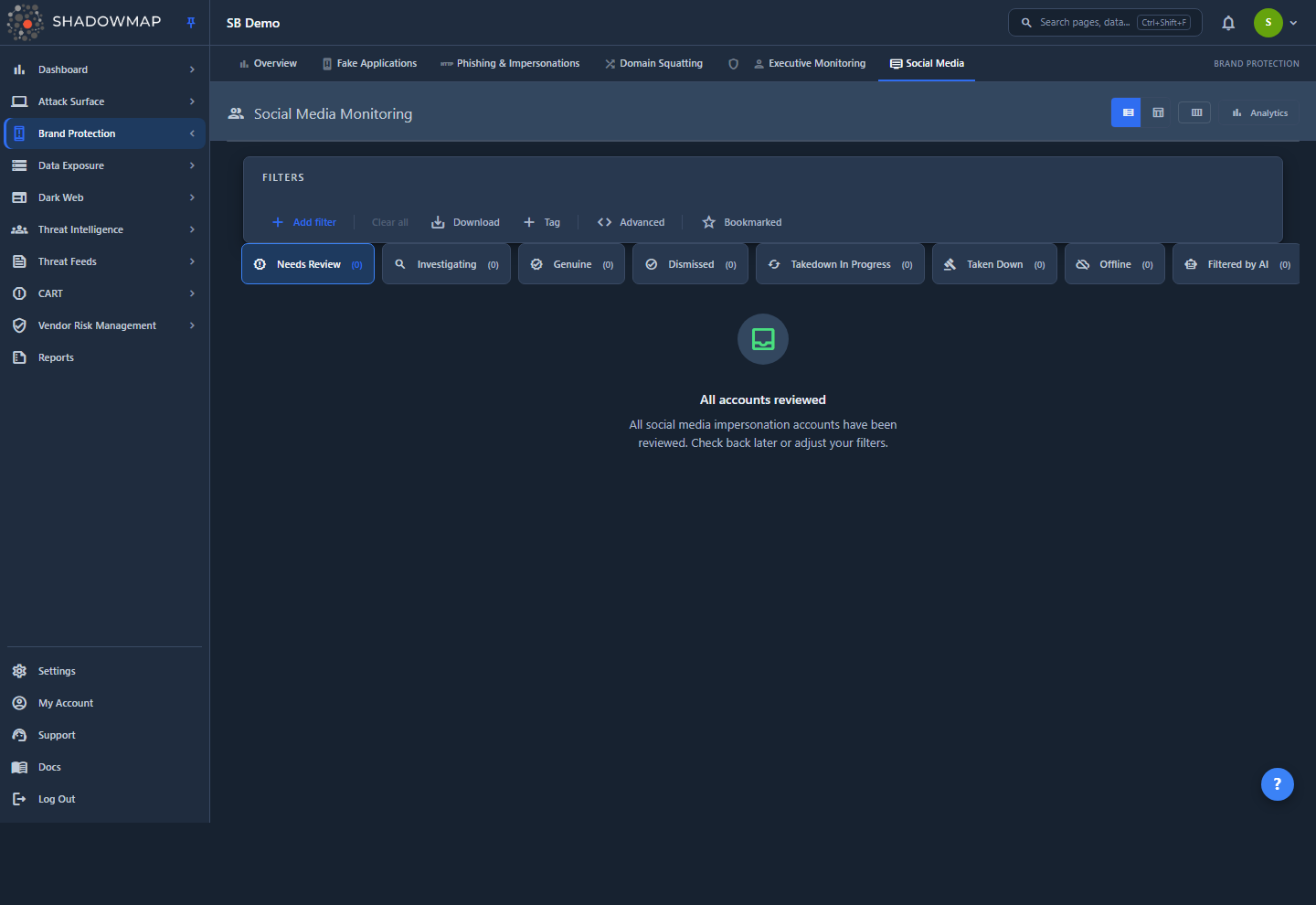
The page opens on the Needs Review queue — newly detected accounts that have not yet been triaged. At the top is a collapsible analytics strip (six KPI cards plus distribution charts), followed by the search/filter bar, the status tabs, and the account list itself.
The list renders in one of two view modes, toggled from the header:
- Triage (default) — a compact, keyboard-driven review layout built for clearing a queue quickly. One account per row with inline accept/dismiss/escalate controls.
- Table — a denser spreadsheet-style grid with sortable columns and a column customizer, better for sorting by follower count or confidence and for export-shaped review.
Every row links to a detail drawer (quick preview) or a full detail page. Each finding carries a confidence score, the platform, follower count, the brand keyword that triggered it, and — where applicable — the monitored executive it impersonates.
Where this fits
Social Media is one of the Brand Monitoring modules, alongside Phishing & Impersonations, Domain Squatting, Fake Applications, and Executive Monitoring. Accounts that impersonate a named executive are cross-linked to the executive record.
How it works
The mechanics below are not visible in the UI but determine what you see and how the queue behaves.
Detection
ShadowMap continuously searches public platform listings and APIs for your brand and executive identities. An account is captured when it matches on one or more signals:
- Brand keyword match — the account name, handle, or bio contains a monitored brand keyword or a known variation.
- Executive name match — the profile is cross-referenced against your monitored executives list (see Executive Monitoring). A match links the finding to that executive and populates the Executive field.
- Profile and content signals — bio text, descriptions, and profile imagery are analyzed for brand association by unauthorized accounts.
Each captured account stores the triggering keyword, so you can always see why a result is in your queue.
Confidence score
Every account is scored 1–10 for the likelihood that it is an impersonation rather than a coincidental or legitimate match. The score drives the default sort (highest confidence first) and the High/Medium/Low badges. The bands are:
| Band | Score | Meaning |
|---|---|---|
| High | 7–10 | Strong impersonation signals — review and act first. |
| Medium | 4–6 | Plausible impersonation; needs analyst judgment. |
| Low | 1–3 | Weak match; often benign keyword overlap. |
Zero-confidence accounts are hidden
Accounts that score 0 are excluded from the list entirely. The score column is labelled Confidence in the UI (the underlying field is named risk); the two terms refer to the same value.
Deduplication
Each account is stored against a deduplication hash so the same profile is not re-listed on every scan. A finding has a First Seen (when ShadowMap first detected it) and a Last Seen (most recently confirmed live) timestamp — use Last Seen to tell whether an impersonating account is still active.
Two independent status axes
A finding actually carries two separate states, which is why a takedown can be in progress while the response status is still untouched:
- Response status — the analyst-review disposition: untriaged (Needs Review), under investigation (Investigating), dismissed as a false positive (Dismissed), or — where AI review is enabled — set aside by the model (Filtered by AI).
- Account status — the lifecycle/liveness state of the account itself: Online, owned by you (Genuine / "Owned By Us"), Taken Down (a ShadowMap takedown completed), or Offline (the account disappeared on its own).
The status tabs combine both axes. For example, Taken Down matches accounts whose ShadowMap takedown request completed; Offline is a separate tab for accounts that went offline without a ShadowMap takedown; and Needs Review matches Online accounts with no open takedown.
Takedown lifecycle
Requesting a takedown creates a record in ShadowMap's centralized takedown system. The account then moves through the tabs as the request progresses (Takedown In Progress → Taken Down) without you having to re-triage it. All takedowns across modules are tracked together in Takedowns.
AI review
For tenants with AI review enabled (and for ShadowMap's internal analysts), each account carries an advisory AI assessment. This surfaces three optional table columns — AI Verdict, AI Score (sortable), and AI Tags — and a dedicated Filtered by AI tab that holds accounts the model judged low-signal so they stay out of your Needs Review queue.
The AI assessment is advisory only: it prioritizes and pre-sorts the queue but never changes an account's status on its own — your triage decisions always govern. Tenants without AI review enabled see none of these surfaces; the AI columns are hidden from the column customizer entirely.
Status tabs
The list is organized into workflow tabs, shown in the order below. Each tab shows a live count, and switching tabs resets filters and pagination for that queue. Tenants with AI review enabled see an additional Filtered by AI tab at the end.
| Tab | What it contains |
|---|---|
| Needs Review | Online accounts not yet triaged. This is the default landing queue. |
| Investigating | Accounts your team has flagged for active investigation. |
| Genuine | Accounts confirmed as owned by your organization ("Owned By Us"). Suppressed from future review. |
| Dismissed | Accounts dismissed as false positives or non-threats. |
| Takedown In Progress | Accounts with a takedown request submitted to the platform but not yet completed. |
| Taken Down | Accounts whose ShadowMap takedown request completed. |
| Offline | Accounts that went offline on their own, without a ShadowMap takedown. |
| Filtered by AI | (AI review only) Accounts the AI review filtered out as low-signal, kept out of Needs Review. |
Tab state is in the URL
The active tab, page, per-page size, sort, and view mode are written to the URL query string, so a reload — or a link you paste to a colleague — restores the exact same queue context.
Understanding the data
Columns (Table view)
The Account column is always shown. The rest are toggled via the column customizer in the header; the defaults are Platform, Confidence, Followers, and Keyword.
| Column | Description |
|---|---|
| Account | Display name / title of the detected account, with the matched keyword highlighted. Always visible. |
| Platform | The social platform (Facebook, Instagram, X/Twitter, LinkedIn, YouTube, TikTok, etc.), shown with a platform icon. |
| Confidence | The 1–10 impersonation score, color-coded High / Medium / Low. |
| AI Verdict, AI Score, AI Tags | (AI review only) The advisory AI assessment for the account (see AI review above). Hidden entirely for tenants without AI review. |
| Followers | Follower or subscriber count, abbreviated (e.g. 12.3K, 1.2M). Higher counts mean wider potential damage. |
| First Seen | When ShadowMap first detected the account (relative time). |
| Last Seen | When the account was most recently confirmed live. |
| Keyword | The brand keyword that triggered the detection. |
| Executive | The monitored executive this account impersonates, if any. |
| Assigned To | The analyst the account is assigned to (shown as initials). |
| Takedown | The current takedown-request status badge (Takedown Requested or Taken Down). |
| Custom Tags | Any user-defined tags applied to the account. |
Sortable columns include Confidence (default, descending), First Seen, Last Seen, Followers, Platform, and Account — plus AI Score where AI review is enabled.
Filtering & search
The filter bar uses ShadowMap's Filter Query Parser (FQP), letting you build AND/OR rule sets. A free-text search box matches against the account title, description, keyword, and profile URL.
Filterable fields:
| Field | Notes |
|---|---|
| Platform | One or more social platforms. |
| Keyword | The brand keyword that triggered detection. |
| Confidence | The impersonation score (or High/Medium/Low band). |
| Organization | Detected organization associated with the account. |
| Executive | Filter to accounts impersonating a specific monitored executive. |
| Account | Match a specific account handle. |
| Status | Response status. |
| Assigned To | Filter to a specific analyst's assignments. |
| First Seen / Last Seen | Date ranges. |
| Followers | Filter by follower count. |
| Bookmarked | Limit to bookmarked accounts. |
| Custom tags | Any tag keys you have created appear here automatically. |
Bookmarks and quick filters
A Bookmarked toggle in the filter bar narrows the list to starred accounts. Clicking a KPI card or a chart slice in the analytics strip applies a quick filter — for example, the High Confidence card jumps to Needs Review filtered to confidence ≥ 7, and clicking a platform slice filters to that platform.
Detail view
There are two depths of detail:
Detail drawer — opens from a row click or the Enter key. A side panel showing the profile image, handle, platform, follower count, confidence score, current status, description, intelligence details (keyword, executive, organization, assignee), profile links, the First/Last Seen timeline, custom tags, and recent comments. It has Previous/Next navigation so you can sweep through the queue without leaving it, plus action buttons (Owned By Us, Investigate, Mark Reviewed, Takedown, Copy URL, Full Page).
Full detail page — /brand-monitoring/social-media/{id}/details, with four tabs:
| Tab | Contents |
|---|---|
| Overview | Full profile: image, name, URL, platform, confidence (x / 10), followers, keyword, executive, organization, First/Last Seen, bio website, description, and tags. |
| Takedown History | Every takedown request for this account with its status, priority, and reason. Includes a Request Takedown button if none exists yet and the account is eligible. |
| Related Context | Links to the executive and/or organization associated with the account, pointing you to filter the list for related impersonations. |
| Activity | A chronological Status History timeline (what changed, who changed it, and when) plus the full comment thread. |
Taking action
Actions can be taken on a single account (drawer, detail page, or row controls) or in bulk by selecting accounts with the checkboxes and using the bulk action bar.
| Action | Effect |
|---|---|
| Owned By Us | Confirms the account is a legitimate account belonging to your organization. Moves it to the Genuine tab and suppresses it from future review. |
| Investigate | Moves the account into the Investigating queue for deeper work. |
| Mark Dismissed | Dismisses the account as a false positive / non-threat (moves it to Dismissed). Labelled Mark Reviewed on the single-account drawer and Reviewed on the detail page. |
| Mark Online | Restores a Dismissed account back to Needs Review. |
| Request Takedown | Opens the takedown form to submit a removal request to the platform. Available from the Needs Review and Investigating contexts. |
| Assign To | Assigns selected accounts to an analyst (or clears the assignee). |
| Bookmark | Stars the account for your own follow-up; persists across sessions. |
| Comment | Adds an internal note; comment templates are supported. |
| Add Tags | Applies custom tag key/value pairs (bulk). |
| Share | Copies a deep link to the account, or shares via configured integrations. |
| Export | Downloads the current (filtered, sorted) list as Excel. |
Keyboard triage
In Triage view, the queue is keyboard-navigable: j/k (or arrow keys) move between rows, o marks owned, i marks investigating, r marks reviewed, Space toggles selection, Enter opens the detail drawer, Esc closes it, and ? shows the shortcut help overlay. A "reviewed this session" counter tracks your progress.
Key metrics
The collapsible analytics strip provides an at-a-glance posture summary:
- Total Accounts, High Confidence (score ≥ 7), New This Week (with a week-over-week delta), Pending Takedowns, Customer Pages (owned accounts — opens the Genuine tab), and Investigating — each KPI card is clickable and applies the matching filter or tab.
- A 30-Day Detection Trend chart (new accounts vs. takedowns completed), a Platform Distribution donut, a Risk Distribution bar, and a Top Keywords list.
Common questions
What's the difference between "Confidence" and "risk"? They are the same 1–10 value. The UI labels it Confidence; the underlying data field is risk. Higher means more likely to be a genuine impersonation. Accounts scoring 0 are not shown at all.
Why is an account I'm sure is fake scored Low? The score reflects automated impersonation signals, not your context. A coincidental keyword overlap with a real account scores low. Use the Investigate action while you gather evidence, then request a takedown when confirmed — your decision is what matters, the score only prioritizes the queue.
I marked a legitimate partner account as "Owned By Us" — will it come back? No. Owned accounts move to the Genuine tab and are suppressed from the Needs Review queue, so the same account won't re-flag on future scans.
An account in "Takedown In Progress" was actually removed by the platform — will it move automatically? Yes. Takedown status is tracked centrally. When the request completes it moves to the Taken Down tab without you re-triaging it; if the account simply goes offline on its own (no ShadowMap takedown) it lands in Offline instead. Review the Takedown In Progress tab periodically to follow up on stalled requests.
What does the "Dismissed" tab represent, and can I undo it? The Dismissed tab holds accounts dismissed as false positives. To revert them, open the Dismissed tab, select the accounts, and use the bulk Mark Online action to send them back to Needs Review.
Does the export reflect my filters? Yes. The Excel export carries the current tab, applied filter rules (including AND/OR condition), free-text search, and sort order, so the file matches what you see on screen.
Why don't I see two findings for the same fake account? Findings are deduplicated by hash, so one profile appears once. Its Last Seen timestamp updates as scans re-confirm it's still live.
Related
- Executive Monitoring — accounts impersonating named executives are linked here and surfaced in the Executive field and Related Context tab.
- Phishing & Impersonations — fake social accounts frequently drive traffic to phishing sites; correlate the two.
- Fake Applications and Domain Squatting — sibling Brand Monitoring detections for app-store and lookalike-domain impersonation.
- Takedowns — track every takedown request submitted from this module alongside takedowns from other modules.
- Custom Tags and Saved Searches — reusable tagging and filter presets for repeatable triage.