
Leaked Files
Leaked Files surfaces documents and binary samples that reference your organization and are sitting on public file-sharing platforms or malware sandboxes — Scribd uploads that mention your brand, and files submitted to the Hybrid Analysis sandbox. It is the module you use to find a confidential deck, an internal SOP, a vendor contract, or a malware sample that shouldn't be public, and to drive it through review and takedown.
Overview
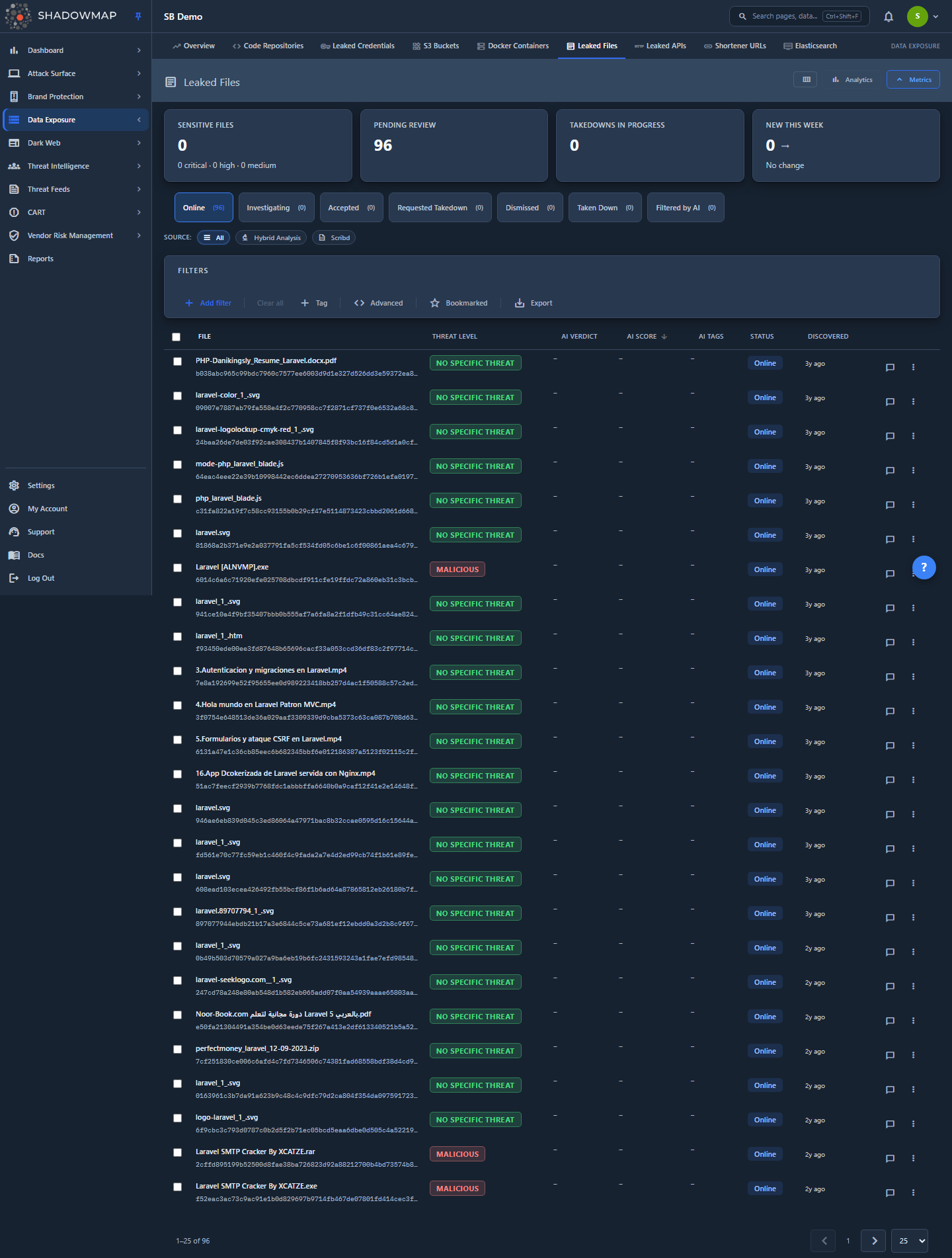
The page is a triage queue. Each row is one discovered file, scored for risk and tagged with the source that found it. From top to bottom you get:
- A KPI strip (Sensitive Files, Pending Review, Takedowns In Progress, New This Week) — clickable cards that filter the list.
- A collapsible analytics panel with detection-trend, threat-level, source, file-type, and top-keyword charts.
- Status tabs (Online, Investigating, Accepted, Requested Takedown, Dismissed, Taken Down, Filtered by AI) that move a file through its lifecycle.
- Source chips (All / Hybrid Analysis / Scribd) for a one-click source filter.
- A filter bar and free-text search, plus Bookmarked and Export controls.
- The results table with per-row and bulk actions, a detail drawer, and a full detail page.
The default landing tab is Online (live, unreviewed files), sorted by AI Score so the AI review's highest-confidence findings sit at the top — tenants without AI review see the newest rows first.
How it works
The mechanics below are not visible in the UI but determine what you see and how rows are scored.
Two sources, one queue, two meanings of "threat level"
Every row comes from one of two collectors, and the threat_level field means something different depending on which:
| Source | What it is | threat_level carries |
|---|---|---|
Hybrid Analysis (source 1) | Files submitted to the Hybrid Analysis public malware sandbox whose detonation matched your keywords | A malware verdict: malicious, suspicious, ambiguous, whitelisted, quickscan, no specific threat, no verdict |
Scribd (source 2) | Documents uploaded to Scribd that mention your brand/keywords | A sensitivity tier: sensitive_critical, sensitive_high, sensitive_medium, or empty when the document only mentions the brand without sensitive markers |
This is why the drawer shows a Sandbox Analysis panel for Hybrid Analysis rows and a Scribd Signals panel for Scribd rows — the two source types expose entirely different evidence. It is also why VirusTotal / Hybrid Analysis hash-lookup links only appear on Hybrid Analysis rows: a Scribd document's stored hash is derived from its file name, so a sandbox lookup on it returns nothing useful.
How threat level is scored and sorted
threat_level is set by the collectors, not in the dashboard. Hybrid Analysis verdicts come from the sandbox; Scribd sensitivity tiers come from a lexicon + PII-density scoring pass on the document content.
Sorting by Threat Level does not sort alphabetically. The dashboard applies a severity rank so that "most severe first" is honored across both source families. Lower rank = more severe:
| Rank | Threat levels (display label) |
|---|---|
| 0 (most severe) | sensitive_critical (Sensitivity: Critical), malicious (Malicious) |
| 1 | sensitive_high (Sensitivity: High), suspicious (Suspicious) |
| 2 | sensitive_medium (Sensitivity: Medium), ambiguous (Ambiguous) |
| 3 | quickscan (Quick Scan) |
| 4 | whitelisted, no specific threat, no verdict |
| 99 (least severe) | empty / unrecognized |
Within a rank, rows tie-break on Discovered date, newest first. The same rank drives the order of values in the Threat Level filter picker, so sensitive_critical always appears at the top of the list rather than buried alphabetically.
For overview/dashboard roll-ups these many levels collapse to three risk buckets: high = malicious / suspicious / ambiguous / sensitive_critical / sensitive_high; medium = sensitive_medium; low = everything else, including empty threat levels (a Scribd doc that merely name-drops your brand is informational, not a leak).
AI review (advisory)
When AI review is enabled for your tenant, ShadowMap layers an advisory AI assessment over the queue. It never moves a file's workflow state on its own — it only adds signal:
- Three columns — AI Verdict, AI Score, and AI Tags — sit after Threat Level. They are hidden entirely for tenants without AI review. AI Score is sortable; a higher score means the AI is more confident the row is a real exposure.
- Two filter fields — AI Assessment (the verdict) and AI Tags — join the Add Filter list, on the same tenant gate.
- The Online tab lands sorted by AI Score, highest first, so the AI's most-confident hits surface without any analyst action. Every other tab defaults to Discovered, newest first.
- The Filtered by AI tab collects rows the AI review pipeline auto-dismissed (
response_status = Filtered by AI). It is shown to every tenant; without AI review it simply stays empty. The AI's call is advisory — move a row back to Online if you disagree.
Confidence filter — what never reaches the queue
Every list, count, and export silently excludes rows where confidence_score = 0. These are collector-side zero-confidence matches; they exist in storage but never appear in any tab. You cannot surface them from the UI.
Tab = a fixed status/response filter
Tabs are not saved searches — each is a hard-wired filter over the file's status, its response_status, and its derived takedown state:
| Tab (label) | Backend condition |
|---|---|
| Online | status = Needs Review AND response_status = Active, with no takedown filed |
| Investigating | response_status = Investigating — an analyst has flagged the row for follow-up |
| Accepted | status = Accepted AND response_status = Active, with no takedown filed |
| Requested Takedown | A takedown has been filed but not yet completed |
| Taken Down | A takedown has completed |
| Dismissed | response_status = False Positive (regardless of status) |
| Filtered by AI | response_status = Filtered by AI — the AI review pipeline auto-dismissed the row |
Takedown state is no longer a stored status. Requested Takedown and Taken Down are derived from whether ShadowMap has filed a takedown request and whether that request has completed — so a row's tab and its Status chip are always computed from the same signal and can't disagree. A row that is Dismissed, Investigating, or AI-filtered stays in that disposition tab even if a takedown is in flight, which keeps the tabs mutually exclusive.
The same mapping powers the row Status badge and the tab count badges, so badges, counts, and rows can never drift apart. The "Dismissed" label is a UI rename — internally and in the URL (?tab=false_positive) this state is still false_positive. Marking a row Dismissed is not the same as accepting it: Dismissed means "this is noise / a false positive," Accepted means "this is a real, acknowledged exposure I'm tracking."
Status transitions are bidirectional
You can move a file from any tab to any other:
- Mark Accepted —
Online→Accepted. - Mark as Investigating / Remove from Investigating — toggles the
Investigatingstate from the Online or Investigating tab. Single-row action only — there is no bulk equivalent. - Mark as Dismissed — any tab →
Dismissed(false positive). - Back to Online — any tab →
Online(revert a mistaken accept/dismiss, or re-open after takedown). - Request Takedown — opens the takedown form; a successful request moves the file to
Requested Takedown, and the file lands inTaken Downonce the takedown completes.
The row dropdown, the bulk action bar, and the detail-page buttons all hit the same endpoints and hide whichever action would re-apply the current state.
Data is read-only intelligence
ShadowMap surfaces files that are already publicly exposed; it does not host or store the leaked content itself. Hybrid Analysis rows link out to the sandbox/VirusTotal; Scribd rows link to the uploader profile and (where available) a sample link. Your actions here are triage-and-respond, not file management.
Understanding the data
Columns
The table is column-customizable (gear/columns control in the page header). File is always shown and cannot be hidden. The default view is a compact triage set — File, Threat Level, AI Verdict, AI Score, AI Tags, Status, Discovered — while Source, Type, Environment, Keyword, and Summary are hidden by default; opt them in from the columns control. The three AI columns are shown only when AI review is enabled for your tenant.
| Column | Description |
|---|---|
| File | File name (primary) with the file hash beneath it. Always visible. |
| Source | Hybrid Analysis or Scribd badge. Hidden by default — also available as the source chips above the table. |
| Type | File type (e.g. PDF, DOCX, PE/binary). Hidden by default. |
| Environment | Sandbox/OS environment the file was analyzed in (Windows / Linux / macOS), where applicable. Hidden by default. |
| Keyword | The keyword of yours that this file matched — the reason it was flagged. Hidden by default. |
| Threat Level | Severity-ranked verdict/sensitivity badge (see How it works). |
| AI Verdict | ShadowMap AI's advisory read on the row. Shown only when AI review is enabled. |
| AI Score | AI review confidence — higher means more likely a real exposure. Sortable. Shown only when AI review is enabled. |
| AI Tags | Advisory tags from the AI review. Shown only when AI review is enabled. |
| Status | Workflow-state chip: Online, Accepted, Takedown Requested, Taken Down, or Dismissed. |
| Discovered | When the file was first found (relative time; hover for absolute). |
| Summary | Extracted document summary. Hidden by default — long-form, mainly useful on malware-flavored rows. |
Status badge values
| Badge | Meaning |
|---|---|
| Online | Live and awaiting review. |
| Accepted | Acknowledged as a real exposure you're tracking. |
| Takedown Requested | A takedown has been filed and is in progress. |
| Taken Down | Takedown completed; the file should no longer be live. |
| Dismissed | Marked as a false positive / noise. |
Filtering and search
Source chips
Three quick chips above the filter bar — All, Hybrid Analysis, Scribd — apply a single-click source filter and refresh the list, analytics, and KPIs together.
Filter bar
The Add Filter bar supports structured (FQP) filters on:
- Status and Response Status (workflow fields)
- File Name
- Threat Level (values ordered most-severe first)
- Environment
- File Type
- Source
- Keyword
- Date Range (
Discovered, supports>=for "since" queries) - Bookmarked
- AI Assessment and AI Tags — shown only when AI review is enabled for your tenant
Multiple filter rules are combined with AND — a row must satisfy every applied rule. The same filter set is preserved on export.
Search
The free-text search box matches across file name, hash, keyword, and source simultaneously. (When structured filter rules are applied, the free-text query is set aside in favor of the rules.)
Bookmarked
The Bookmarked toggle (star) in the filter bar restricts the list to files you've personally starred — a private, per-user working set.
KPI quick filters
The KPI cards are clickable shortcuts:
| Card | What it counts (Online tab only, unless noted) | Click action |
|---|---|---|
| Sensitive Files | Online files at sensitive_critical / sensitive_high / sensitive_medium; subtitle splits critical · high · medium | Filters to the sensitive tiers |
| Pending Review | All open (Online, Needs Review) files | Switches to the Online tab |
| Takedowns In Progress | Files in Takedown Requested | Switches to the Requested Takedown tab |
| New This Week | Online files discovered in the last 7 days; subtitle shows the week-over-week delta | Filters Discovered >= 7 days ago |
The "New This Week" trend coloring is threat-semantic: red (up) means more new exposure (bad), green (down) means less.
Detail view
Clicking a row opens a side drawer; pressing Enter (or the expand icon) opens the full detail page.
Drawer
A fast triage panel with prev/next navigation. It shows:
- Threat Level, Environment, and Type badges.
- Overview tab — file name, hash, source, type, environment, keyword, summary (or a "No per-document summary generated yet." note), discovered date, and takedown-requested date.
- A source-specific evidence panel:
- Scribd Signals — risk score (0–100, banded Low/Medium/High), matched markers, the uploader (links to their Scribd profile), and discovery source.
- Sandbox Analysis — the verdict, sandbox name, and lookup links to VirusTotal and Hybrid Analysis keyed on the file hash.
- Comments tab — threaded comments with template support.
Drawer keyboard shortcuts: j / k next/prev, s bookmark, Space select, t request takedown, Enter open full page, Esc close.
Full detail page
A four-tab investigation surface:
- Overview — full metadata grid, summary, Scribd signals, and sample link.
- Analysis — hash lookups (VirusTotal / Hybrid Analysis, on relevant rows), keyword context ("flagged because it matched…"), and file details.
- Related Items — other leaked files and code repositories linked to this file, so you can trace an exposure across modules.
- Comments.
The detail header carries the same status actions (Accept / Back to Online / Dismiss), Bookmark, Request Takedown, and Share.
Taking action
Per row
Use the row's ⋯ (more actions) menu: Bookmark, Share, Mark Accepted / Back to Online, Mark as Investigating / Remove from Investigating (on the Online and Investigating tabs), Mark as Dismissed, and Request Takedown. A comment icon is inline on every row.
In bulk
Select rows (checkboxes or Space in the drawer) to reveal the bulk action bar: Back to Online, Accept, Mark as Dismissed, Takedown, Bookmark, and Share — applied to the whole selection.
Takedown
Request Takedown opens a form with module-specific reasons: Sensitive Data Leak, Copyright Infringement, Credential Exposure, Source Code Leak, Configuration Exposure, and PII / Customer Data. Takedown actions require the takedown permission and are hidden for vendor accounts (along with the Requested Takedown and Taken Down tabs). See Takedowns for the end-to-end takedown workflow.
Export
The Export control runs an asynchronous Excel export as a background task; you're notified when it's ready. The export honors the active tab, all applied filters, the current sort, and search — so the file matches exactly what you see on screen.
TIP
Bookmarks, comments, custom tags, sharing/integrations, and exports behave consistently across modules. See Bookmarks, Comments, Custom Tags, Sharing & Integrations, and Exports.
Common questions
Why do two rows with the same "high" risk show different threat levels? Because the two sources speak different languages. A Hybrid Analysis row's threat level is a malware verdict (malicious); a Scribd row's is a sensitivity tier (sensitive_critical). Both bucket to "high" risk on the dashboard, but the raw label tells you which collector found it and how to investigate it.
A document is on Scribd but shows no Threat Level — is it safe? An empty threat level means the Scribd document mentions your brand but no sensitivity marker was detected in the fetched content. These are treated as informational (low risk), not as confirmed leaks. Review the summary and signals to decide whether it's genuinely benign.
What's the difference between Accepted and Dismissed? Accepted = a real exposure you've acknowledged and are tracking. Dismissed = a false positive / noise you're removing from the active queue. Internally Dismissed is the false_positive state; it's labeled "Dismissed" so you don't conflate "I reviewed it" with "I confirmed it's a leak."
The VirusTotal / Hybrid Analysis lookup links are missing on some rows. They only appear on Hybrid Analysis rows. Scribd document hashes are derived from the file name and resolve to nothing in a malware sandbox, so those dead-end links are hidden on Scribd rows.
Why does a file I expected to see not appear in any tab? Most likely it has a zero confidence score (collector-side low-confidence match), which is excluded from every list, count, and export. It may also be in a different tab — check Dismissed and Accepted, not just Online.
Can I see another team member's bookmarks? No. The Bookmarked filter is per-user — it's your private working set. Use comments, custom tags, or sharing to collaborate on a file.
Does the export include the whole queue or just the current view? Just the current view — the export applies the active tab, filters, sort, and search exactly as displayed. To export everything, clear filters and the tab scope before exporting.
What is the Investigating tab? Investigating is a manual lifecycle state an analyst sets on a live file to flag it for follow-up without accepting or dismissing it. Toggle it from a row's ⋯ menu (Mark as Investigating / Remove from Investigating) on the Online or Investigating tab. It is a single-row action — there is no bulk "investigate."
Why is a file in the Filtered by AI tab? The AI review pipeline down-ranked it and auto-dismissed it from the active queue (response_status = Filtered by AI). The AI assessment is advisory: if you disagree, open the row and move it Back to Online. The tab appears for every tenant, but for tenants without AI review it stays empty.
Related
- Data Leaks Overview — the parent dashboard summarizing all data-exposure findings.
- Code Repositories — leaked source and config in public repos; Related Items can link a leaked file to a repo.
- Stealer Logs and Leaked Credentials — related exposure surfaces for credentials and infostealer artifacts.
- Takedowns — how takedown requests are dispatched and tracked after you file them here.
- Severity Levels and Status Workflow — cross-module reference for how risk and triage states work.