
Vulnerability Scan
Configure vulnerability scanning behavior for your external infrastructure by creating scan profiles. Each profile defines which assets are scanned, what actions are performed, and at what rate -- giving you granular control over ShadowMap's scanning activity.
Overview
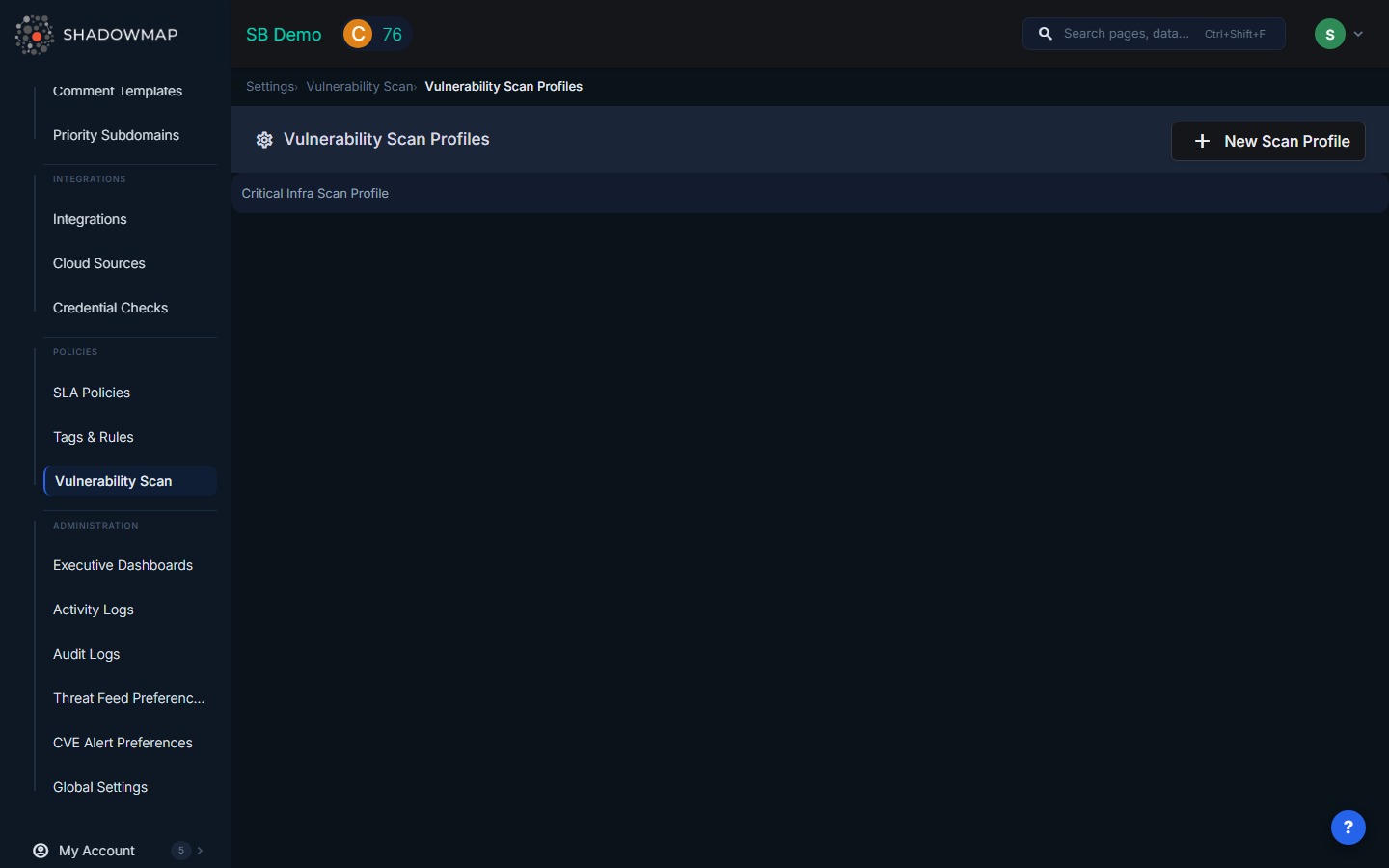
The Vulnerability Scan settings page lets you create and manage scan profiles. Each profile contains one or more rules that define scanning behavior for specific asset types and values.
Scan Profiles
A scan profile groups scanning rules under a single configuration:
| Field | Description |
|---|---|
| Profile Name | A descriptive name for the profile (e.g., "Production Servers", "Development Environment") |
| Description | Additional context about what the profile covers and why |
| Status | Enable or disable the entire profile via a toggle. Disabled profiles do not execute any of their rules. |
| Created By | The user who created the profile and when it was last updated |
Scan Rules
Each profile contains one or more rules. Rules define the specific scanning behavior:
| Field | Description |
|---|---|
| Asset Type | The type of asset to scan (e.g., IP addresses, domains, subdomains). Select from a dropdown of available asset types. |
| Asset Values | The specific assets to include. A multi-select dropdown populated with discovered assets of the selected type. Allows searching within the list. |
| Scan Action | What scanning action to perform on the selected assets (e.g., port scan, vulnerability scan, technology detection) |
| Rate Limit | Controls scan intensity to avoid disrupting production services |
Adding Multiple Rules
Click Add another rule to add additional rules to a profile. This allows a single profile to cover different asset types with different scan actions. For example, one profile might:
- Rule 1: Perform port scanning on production IP addresses at a conservative rate
- Rule 2: Run vulnerability detection on staging subdomains at a higher rate
- Rule 3: Execute technology fingerprinting on all web applications
Creating a Scan Profile
- Navigate to Settings > Vulnerability Scan
- Click Add Scan Profile
- Enter a profile name and description
- Set the enable/disable toggle
- Configure your first rule by selecting asset type, asset values, scan action, and rate limit
- Add additional rules if needed
- Click Save Settings
Editing a Scan Profile
Click an existing profile to edit it. You can modify the name, description, status, and all rules. Removed rules are tracked and deleted on save. New rules can be added at any time.
Best Practices
- Separate production and non-production profiles -- Use conservative rate limits for production assets and more aggressive scanning for development/staging
- Start with broad asset selection and narrow down if scan results generate too many false positives
- Disable profiles temporarily during change windows or maintenance periods to avoid false alerts
- Name profiles descriptively so team members understand which infrastructure each profile covers
- Review profiles periodically as your infrastructure changes -- new assets may not be covered by existing rules