
S3 Buckets
ShadowMap identifies publicly accessible AWS S3 buckets associated with your organization. Misconfigured cloud storage is one of the most common causes of large-scale data exposure, and this module continuously monitors for buckets that may be leaking sensitive data.
Overview
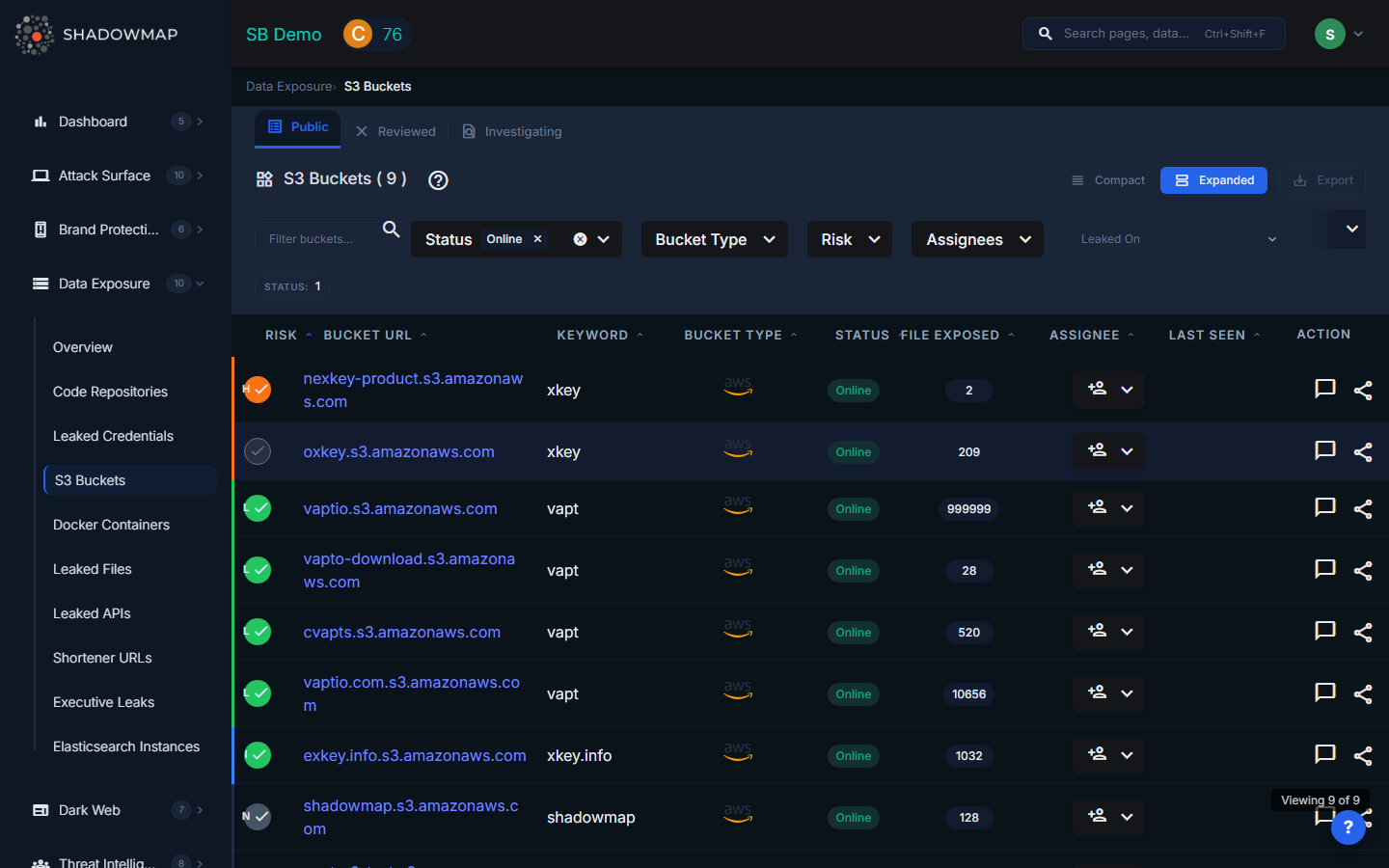
The listing page displays S3 bucket findings in a sortable table view. Every column header is sortable (ascending/descending), and the table supports bulk selection for batch operations. An export button in the header downloads all filtered results.
Understanding the Data
| Column | Description |
|---|---|
| Risk | Severity level based on the bucket's access configuration and content: Critical (public write), High (sensitive data exposed), Medium (non-sensitive public data), Low (empty or non-critical) |
| Bucket URL | The full S3 bucket URL. Sortable to quickly find specific buckets. |
| Keyword | The keyword or pattern that matched this bucket to your organization |
| Bucket Type | Classification of the bucket's accessibility |
| Status | Current response status of the finding |
| Files Exposed | Count of files found in the publicly accessible bucket |
| Assignee | Team member assigned to investigate or remediate this finding |
| Last Seen | When ShadowMap last verified the bucket's public accessibility |
Bucket Types
| Type | Description |
|---|---|
| Public | The bucket allows unauthenticated public read access. Anyone on the internet can list and download its contents. |
| Private | The bucket appears in enumeration results but does not allow public access (typically a false positive or recently secured). |
| Misconfigured | The bucket has inconsistent permissions -- for example, public listing is enabled but individual object access is restricted, or vice versa. These buckets are at particular risk because the misconfiguration may not be intentional. |
Statuses
Findings move through a response workflow:
- Public -- Initial state; the bucket is confirmed publicly accessible
- Investigating -- Assigned for investigation
- False Positive (Reviewed) -- Confirmed as not a risk (e.g., intentionally public marketing assets)
- Takendown -- The bucket has been secured or removed
Filtering and Search
The filter bar provides:
- Text search -- Filter buckets by URL or keyword
- Status -- Multi-select: Public, Investigating, False Positive, etc.
- Bucket Type -- Multi-select: Public, Private, Misconfigured
- Risk -- Multi-select: Critical, High, Medium, Low
- Assignees -- Filter by assigned team member
- Date range -- Filter by when the bucket was last seen
Active filters appear as removable pills below the filter bar, with a "Clear All" option.
Available Actions
Individual Actions
| Action | Description |
|---|---|
| Assign | Assign the finding to a specific team member for investigation |
| Clear Assignee | Remove the current assignee |
| Mark as Reviewed | Move from Public/Investigating to False Positive (Reviewed) |
| Mark as Public | Move from False Positive/Investigating back to Public |
| Mark as Investigating | Flag for active investigation |
| Comment | Add internal notes to the finding |
| Share via Integration | Push to connected tools (ServiceNow, Jira, etc.) |
| Request Takedown | Submit a takedown request |
Bulk Actions
Select multiple buckets using checkboxes to perform batch operations:
- Bulk assign to a team member
- Bulk clear assignee
- Bulk status change (Reviewed, Public, Investigating)
- Bulk share via integrations
What Gets Detected
ShadowMap scans for S3 buckets by:
- Enumerating bucket names based on your organization's domain names, brand names, and known naming patterns
- Checking ACL configurations for public read and write access
- Analyzing bucket contents for sensitive file types (databases, backups, configuration files, documents)
- Monitoring for changes in bucket accessibility over time
Response Guidance
- Verify ownership. Confirm that the bucket actually belongs to your organization before taking action. The keyword match is based on naming patterns, and some matches may be coincidental.
- Restrict access immediately. For confirmed buckets, disable public access through the AWS console or CLI:
aws s3api put-public-access-block --bucket BUCKET_NAME --public-access-block-configuration BlockPublicAcls=true,IgnorePublicAcls=true,BlockPublicPolicy=true,RestrictPublicBuckets=true - Audit the contents. Determine what data was exposed and for how long. S3 access logs (if enabled) can show who accessed the bucket.
- Assess data sensitivity. If the bucket contained PII, financial data, or health records, you may have regulatory notification obligations (GDPR, CCPA, HIPAA).
- Review IAM policies. Identify how the bucket was made public and fix the underlying IAM or bucket policy to prevent recurrence.
- Enable S3 Block Public Access at the AWS account level to prevent future buckets from being accidentally made public.
- Notify affected parties if personal data was exposed, per applicable regulations.