
Integrations
Integrations connect ShadowMap to your existing security and IT operations tools. Once configured, integrations are used by SLA Policies to automatically send notifications and create tickets when security findings are detected.
Overview
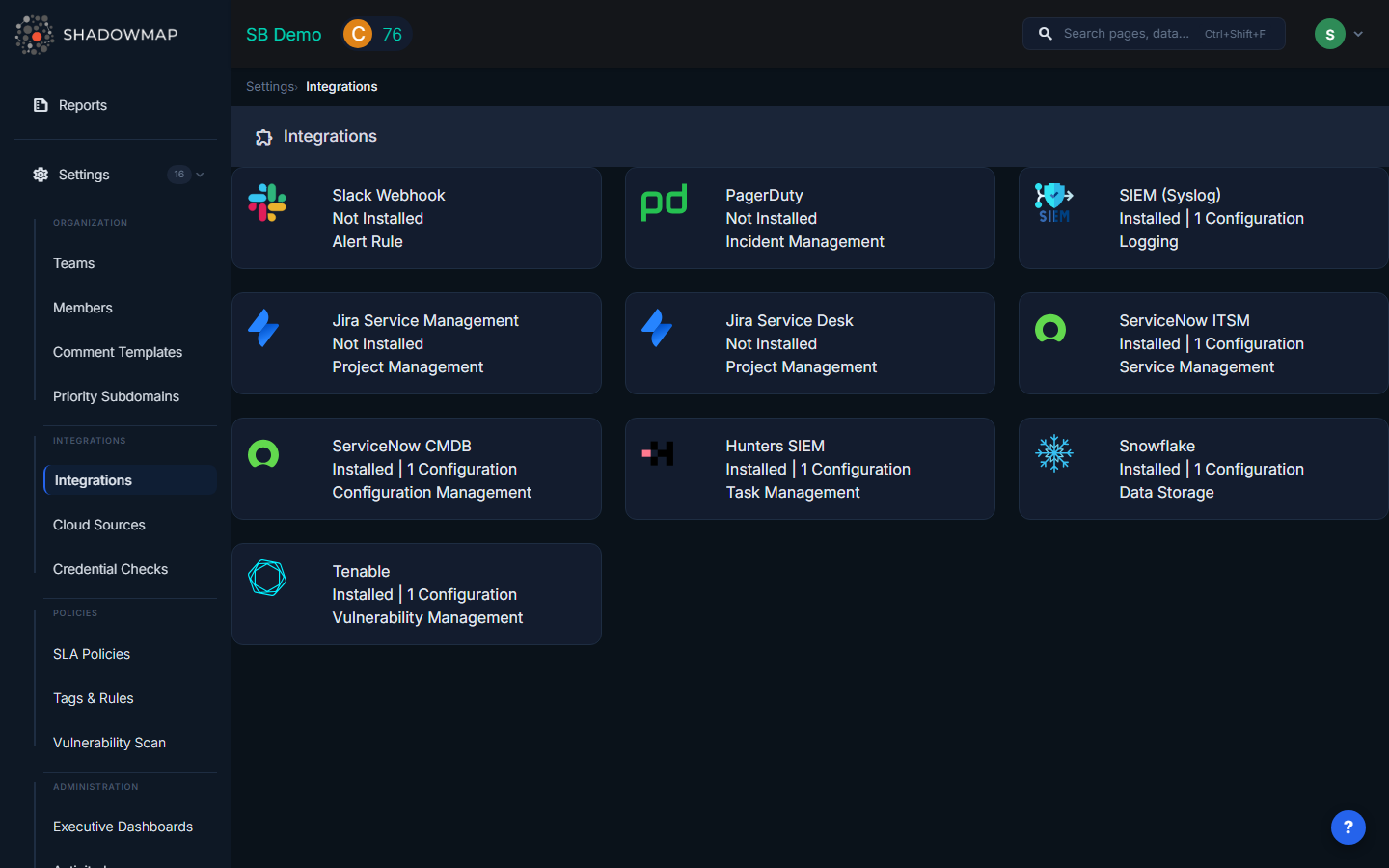
Available Integrations
| Integration | Use Case | What It Does |
|---|---|---|
| Slack | Real-time team notifications | Posts formatted alert messages to Slack channels |
| PagerDuty | Incident management | Creates PagerDuty incidents with severity mapping |
| SIEM / Syslog | Security log aggregation | Sends CEF-formatted events via TCP or UDP |
| Jira Service Management | Incident tracking | Creates parent incidents with child subtask per finding |
| Jira Service Desk | ITSM ticketing | Creates deduplicated service desk requests |
| ServiceNow CMDB | ITSM workflow | Sends email-based notifications |
| Microsoft Teams | Team notifications | Posts to Teams channels via webhook |
| Generic Webhook | Custom automation | POSTs JSON to any HTTP endpoint |
| Freshservice | ITSM ticketing | Creates Freshservice tickets |
| Splunk HEC | Log ingestion | Forwards events to Splunk HTTP Event Collector |
Setting Up an Integration
General Flow
- Navigate to Settings > Integrations
- Select the integration type
- Click Add to create a new configuration
- Enter a name and the provider-specific credentials
- Save the integration
- Use it in SLA Policies for automated notifications
You can create multiple configurations of the same type (e.g., multiple Slack webhooks for different channels).
Slack
Fields:
- Name — Descriptive name (e.g., "Security Alerts Channel")
- Webhook URL — Your Slack incoming webhook URL
Getting a webhook URL:
- Go to api.slack.com/messaging/webhooks
- Create a new app (or use an existing one)
- Enable Incoming Webhooks and add a new webhook to your desired channel
- Copy the webhook URL (format:
https://hooks.slack.com/services/T.../B.../xxx)
What notifications look like: Formatted messages with alert title, severity, affected host/IP, and a link back to ShadowMap.
PagerDuty
Fields:
- Name — Descriptive name (e.g., "Production Alerts")
- Webhook Key — 32-character PagerDuty integration key
Getting an integration key:
- In PagerDuty, go to Services > select your service > Integrations
- Add a new integration using the Events API v2 type
- Copy the 32-character integration key
What happens: Creates PagerDuty incidents with severity mapped from ShadowMap risk levels.
SIEM / Syslog (HP ArcSight)
Fields:
- Name — Descriptive name
- Host — SIEM server hostname or IP address
- Protocol — TCP or UDP
- Port — Listening port (typically 514 for syslog)
What it sends: CEF (Common Event Format) events over syslog, compatible with ArcSight, QRadar, Splunk, and other SIEM platforms.
Example CEF event:
CEF:0|ShadowMap|SLA Manager|1.0|<id>|Critical Vulnerability|9|src=192.168.1.100 dst=10.0.0.5 msg=...Jira Service Management
Fields:
- Name — Descriptive name
- URL — Jira instance URL (e.g.,
https://yourorg.atlassian.net/) - Username — Jira username or email
- Password — Jira API token (not your password)
Getting an API token:
- Go to id.atlassian.com/manage-profile/security/api-tokens
- Create a new API token and copy it
What happens: Creates a parent Incident with individual subtasks for each finding. If a parent incident already exists for the same policy, new findings are added as subtasks under it.
Jira Service Desk
Fields: Same as Jira Service Management (URL, Username, API Token)
What happens: Creates service desk requests. Deduplication is built in — if a request with the same finding summary already exists (identified by SM# prefix), a duplicate is not created.
ServiceNow CMDB
Fields:
- Name — Account name
- Email — ServiceNow email address
- Customer ID — ServiceNow account identifier
- PIN — Authentication credential
Microsoft Teams
Configure via an incoming webhook URL for your Teams channel, similar to Slack.
Generic Webhook
Fields:
- Name — Descriptive name
- URL — Your HTTP endpoint
Posts JSON payloads containing finding details to any endpoint you specify. Useful for custom automation, Lambda functions, or proprietary ticketing systems.
Splunk HEC
Sends events to Splunk's HTTP Event Collector for ingestion into your Splunk index.
Integration Health & Reliability
Retry Logic
All integrations use automatic retry with exponential backoff:
- Attempt 1: Immediate
- Attempt 2: 30 seconds later
- Attempt 3: 5 minutes later
If all 3 attempts fail, the delivery is logged as failed.
Circuit Breaker
If an integration fails 5 consecutive times, ShadowMap temporarily suspends notifications to that integration to prevent repeated failures. Notifications resume automatically when the integration recovers.
Delivery Logs
Every notification attempt is logged with:
- Timestamp, status code, response, success/failure
- View delivery history from the integration detail page
Managing Integrations
Editing
Click an existing integration to update its name or credentials. Sensitive fields (API keys, tokens) are masked — if you don't change them, the original values are preserved.
Enabling / Disabling
Toggle an integration's status to temporarily disable it without deleting the configuration.
Deleting
Delete an integration to permanently remove it. Any SLA policies using this integration will no longer send notifications through it.
Testing
After configuring an integration, use the Test function to send a synthetic notification and verify connectivity.
Common Questions
Q: What's the difference between Integrations and Cloud Sources?
Integrations send notifications out of ShadowMap (to Slack, Jira, SIEM). Cloud Sources bring data into ShadowMap (from AWS, Azure, GCP). They serve completely different purposes.
Q: Do I need to configure integrations before creating SLA policies?
Yes. SLA policies reference your configured integrations as notification channels. Set up the integration first, then it will appear as an option when configuring SLA policy notifications.
Q: Can I send findings to my SIEM automatically?
Yes. Configure a SIEM/Syslog integration with your SIEM's hostname and port, then create an SLA Policy that routes findings to it. You can also share individual alerts to your SIEM from the Alerts detail view.
Q: How do I send different finding types to different Slack channels?
Create multiple Slack webhook integrations (one per channel), then create separate SLA policies for each finding type, each pointing to the appropriate Slack integration.
Related
- SLA Policies — Configure automated notification rules using integrations
- Alerts — Share individual alerts via integrations
- Cloud Sources — Import cloud assets (different from integrations)