
Vendor Risk Management
The Vendor Risk Management (VRM) module lets you monitor the external security posture of your third-party vendors using the same scoring methodology ShadowMap applies to your own organization. Track vendor security ratings over time, compare vendors against each other, and get alerted when a vendor's security posture degrades.
Overview
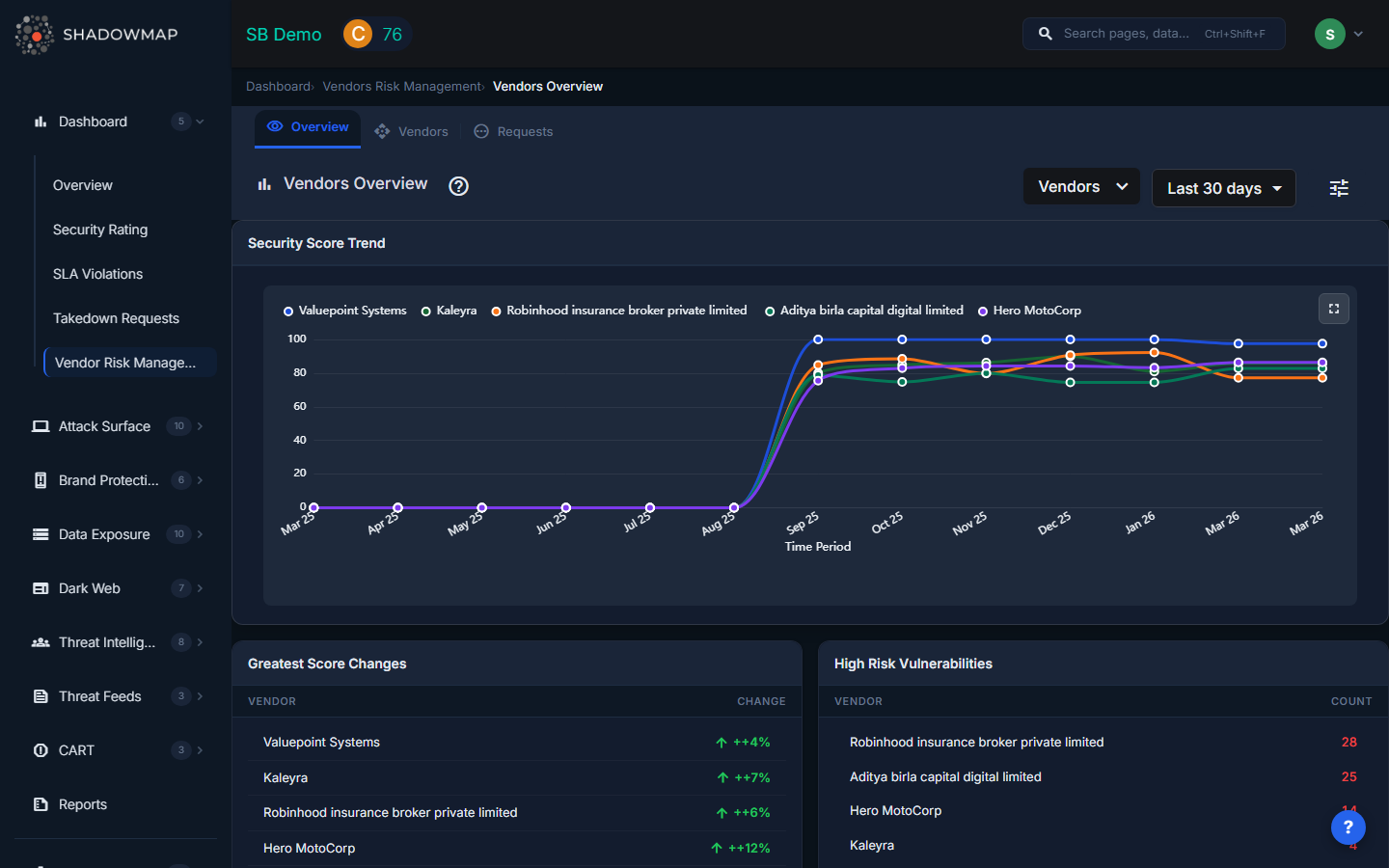
How VRM Works
ShadowMap scans your vendors' external digital footprint the same way it scans yours — from the outside. Each vendor receives:
- A security score (0-100) and letter grade (A-F) calculated using the same 8-category scoring algorithm
- Category breakdowns across Vulnerability Management, Network Security, Application Security, Encryption, Email/DNS, Dark Web, Data Exposure, and Brand Protection
- Historical trend data showing how their score changes over time
TIP
VRM scores reflect externally visible security posture only. A vendor with a high score may still have internal issues, and vice versa. Use VRM as one data point in your vendor risk assessment process, not the only one.
The Vendor List
The vendor list shows all monitored vendors with:
| Column | Description |
|---|---|
| Vendor Name | Organization name with initials avatar |
| Priority | Your assigned risk priority (High, Medium, Low) |
| Score | Overall security score (0-100) with letter grade |
| Category Breakdown | Individual scores across the 8 security categories |
| Tags | Custom tags for organization (e.g., "payment-processor", "cloud-provider") |
| Last Updated | When the vendor's score was last recalculated |
| Report | Link to download the vendor's security report |
Managing Your Vendor Portfolio
Adding a Vendor
- Click Add Customer on the VRM page
- Search for the vendor organization by name
- Select them from the dropdown
- Their next scan will generate a security rating
If a vendor isn't in ShadowMap's database, you can request that they be scanned.
Assigning Priority
Assign a risk priority to each vendor based on their criticality to your organization:
- High — Critical vendors (payment processors, cloud providers, data processors). Score changes demand immediate attention.
- Medium — Important vendors with moderate access or data exposure.
- Low — Non-critical vendors with minimal risk surface.
Tagging Vendors
Apply custom tags to organize vendors by:
- Business function (e.g., "payment", "hosting", "HR")
- Contract type (e.g., "SaaS", "managed-service", "contractor")
- Risk tier (e.g., "tier-1", "tier-2")
- Compliance requirement (e.g., "SOC2-required", "PCI-scope")
Removing a Vendor
Click the remove icon next to a vendor to stop monitoring them.
Vendor Score Timeline
The VRM module tracks vendor scores over time, showing monthly trends. Use this to:
- Identify declining vendors — A vendor whose score drops consistently may indicate deteriorating security practices
- Verify improvements — After a vendor claims to have addressed an issue, track whether their score actually improves
- Compare trajectories — See which vendors are improving and which are regressing
Use Cases
Due Diligence for New Vendors
Before onboarding a new vendor:
- Add them to VRM
- Review their security rating and category breakdown
- Identify any critical-grade categories (D or F)
- Request the vendor's security report for detailed findings
- Use the data to inform your vendor risk assessment
Ongoing Vendor Monitoring
For active vendors:
- Assign appropriate priority levels
- Set up SLA Policies for VRM findings to get alerted on score drops
- Review vendor scores monthly as part of your GRC workflow
- Use the timeline view to spot trends
Board and Compliance Reporting
VRM data supports governance requirements:
- Third-party risk reports — Export vendor scores for board presentations
- Compliance evidence — Demonstrate continuous vendor monitoring for SOC 2, ISO 27001, and regulatory audits
- Vendor risk register — Use ShadowMap scores alongside your internal risk register
Incident Response
When a vendor is breached:
- Check their VRM score — was there a pre-incident decline?
- Review their Dark Web & Threat Intelligence category — were there warning signs?
- Use the data to inform your incident response (scope of exposure, types of data at risk)
Common Questions
Q: How often are vendor scores updated?
Vendor scores are recalculated daily, just like your own score. The "Last Updated" column shows when the most recent calculation occurred.
Q: Can my vendors see that I'm monitoring them?
No. VRM monitoring is based on external scanning — your vendors are not notified.
Q: A vendor's score seems wrong — can I dispute it?
VRM scores are based on externally visible data. If you believe there's an error, contact ShadowMap support with the specific finding you believe is incorrect. Note that internal controls (firewalls, WAFs) may mask some issues from external scanning.
Q: How many vendors can I monitor?
There is no hard limit on the number of vendors you can add. The practical limit depends on your ShadowMap plan.
Related
- Security Rating — Your own organization's rating (same methodology)
- How Scoring Works — The algorithm behind both your score and vendor scores
- Benchmarking — Compare your score against peers (different from VRM)
- Dashboard Overview — VRM summary widget on the main dashboard